# Burn assets
Source: https://docs.settlemint.com/docs/operators/asset-servicing/burn-assets
Permanently remove units of a security from circulation.
Burning removes asset units from holder balances and submits the burn to the asset contract.
Use this guide to retire issued tokens from the Console for share cancellation, bond redemption, buyback settlement, custodian enforcement, or correcting an authorised issuance.
DALP burns one holder through the `burn` contract call and multiple holders through the batch burn path. The operation is available only when the asset supports burning, the asset is not paused, and your account has the supply management permission for that asset.
If you automate holder burns, use the [token holders and transfers API guide](/docs/api-reference/tokens/token-holders-transfers#burn-holder-balances). For the broader asset policy model, see [asset policy](/docs/architecture/concepts/asset-policy).
Burning is permanent and cannot be undone.
## Prerequisites [#prerequisites]
* The asset includes the burnable token feature and is not paused.
* Your account has the supply management role for the asset. Check the Permissions tab before starting.
* Each target address holds enough balance for the burn amount. In the console form, frozen units do not count toward the available balance. To burn frozen holdings as a custodian enforcement measure, use the Platform API or CLI, which validate against the total balance. See [Burning frozen holdings](#burning-frozen-holdings).
* If you burn from multiple rows, the combined amount for each address fits within that address's available balance.
* If the asset charges an external transaction fee and you burn from your connected wallet, that wallet holds enough fee token and has approved the external fee feature for the burn fee.
## What the console checks [#what-the-console-checks]
Before you continue, the burn form checks that each row has a holder address and a positive amount. If the same holder appears in more than one row, the form adds those rows together and compares the combined amount with the holder's available balance. The console form treats frozen units as outside the available amount, so it does not let you submit a burn that exceeds a holder's available balance.
On the confirmation step, DALP shows the current supply, the projected new supply, the holder rows, and any fee preview. When a percentage burn fee applies, DALP shows the net amount removed from supply for each row because the fee leg transfers rather than burns. If an external transaction fee applies and the connected wallet is one of the burn sources, the sheet also checks that wallet's fee-token balance and allowance before submission.
## Burning frozen holdings [#burning-frozen-holdings]
The console form is the conservative path. It limits a burn to the holder's available (unfrozen) balance.
The burn capability reaches further. When you burn through the Platform API or the CLI, the platform validates the burn against the holder's total balance, not only the unfrozen part. If the requested amount is larger than the unfrozen balance, the asset contract releases just enough of the frozen balance to complete the burn. The rest of the holder's balance stays frozen.
This supports a custodian enforcement workflow. Freeze a holder's balance to lock it during an investigation, then burn those holdings once an approved case requires removing them from circulation.
Transfers and redemptions stay stricter. A transfer or a redeem-all settles against the available balance only, because frozen units cannot move to another holder. A burn destroys supply rather than moving it, so it can consume frozen units when the case requires it.
A holder whose balance is fully frozen has no available balance. A transfer or redeem against that holder fails. A burn against the same holder still succeeds, up to the total balance.
## Steps [#steps]
### Open burn dialog [#open-burn-dialog]
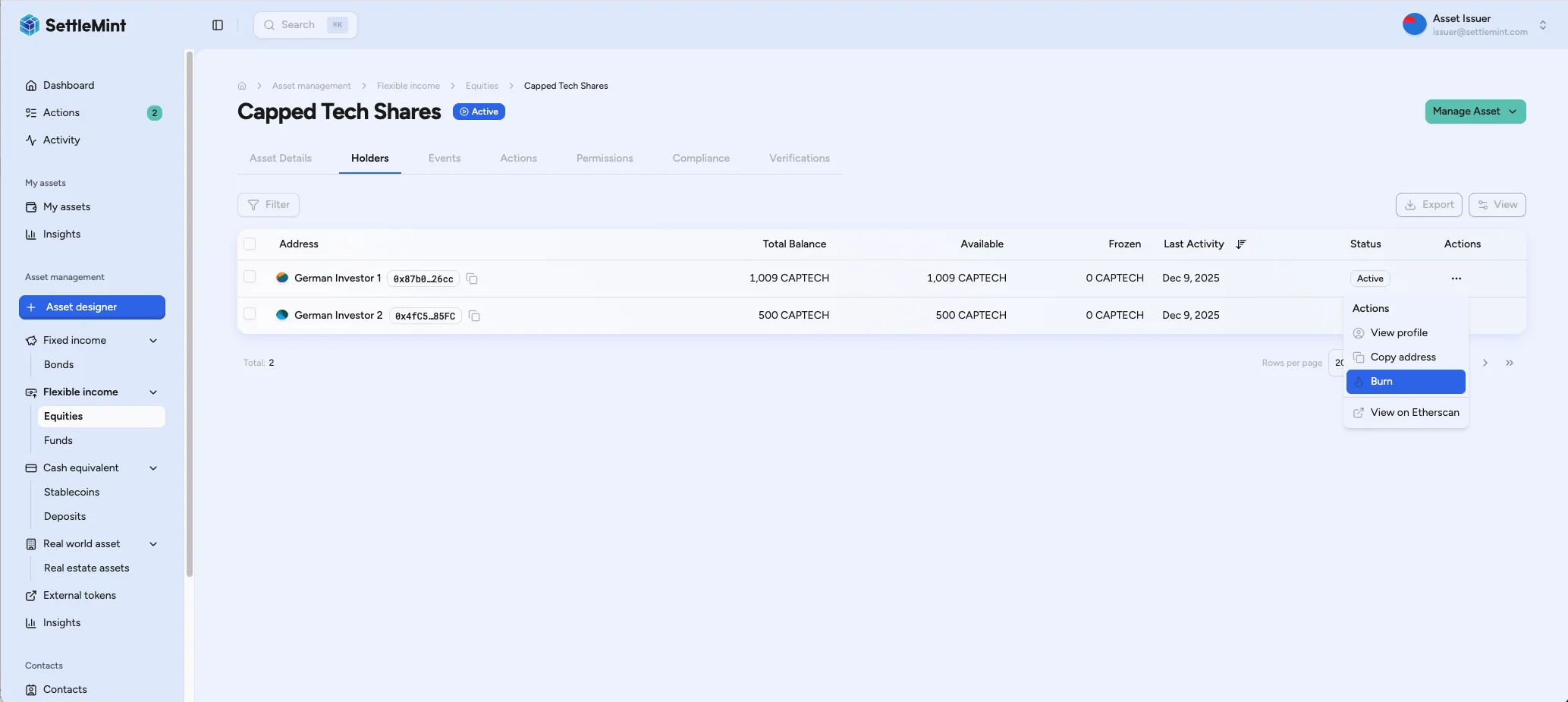
Navigate to the asset page and open the **Holders** tab. Click the ... menu on the holder row you want to burn from, then select Burn.
### Enter details [#enter-details]
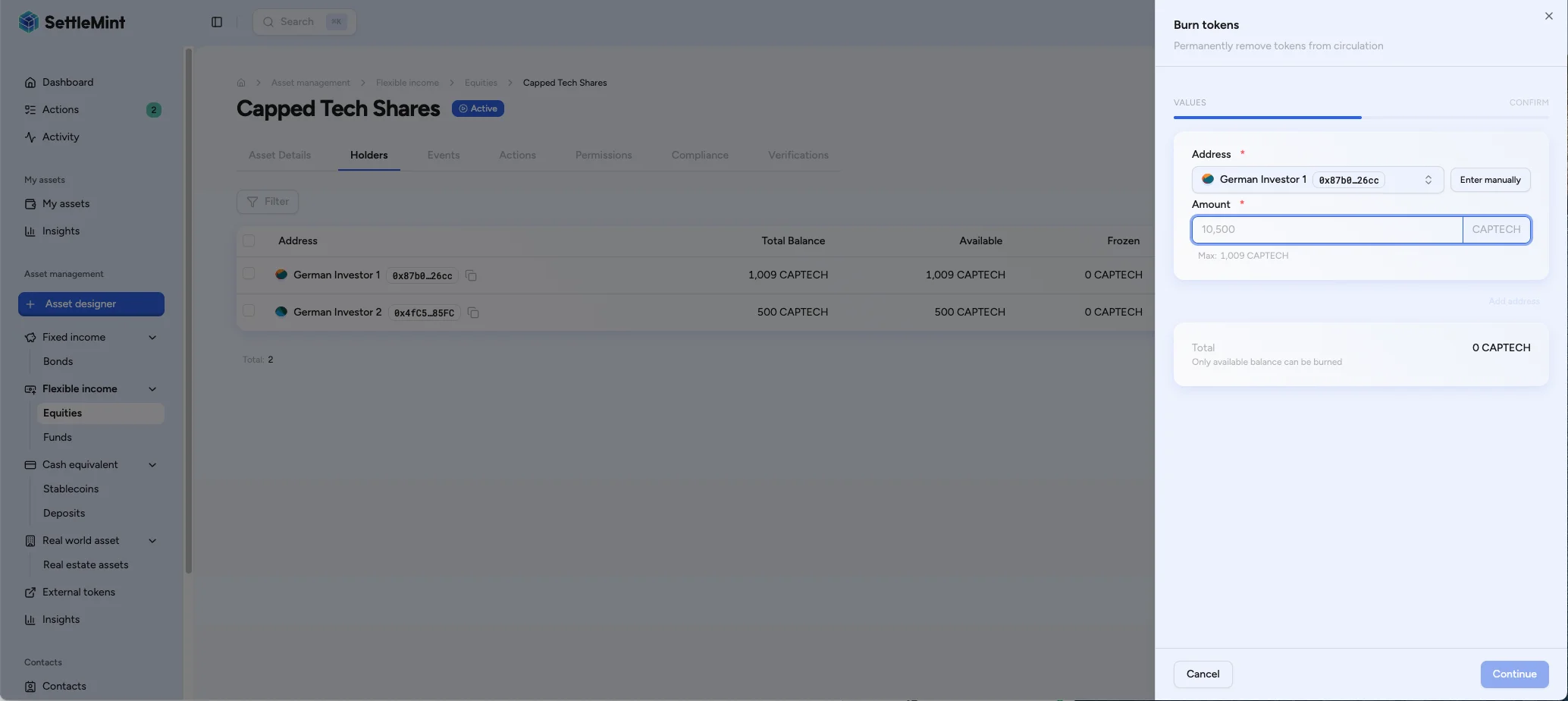
Select the holder address and enter the burn amount. Click Add address to burn from more than one holder in the same submission. DALP validates that the number of addresses matches the number of amounts and accepts up to 100 rows in one burn request. The form checks available holder balances before you proceed: if you enter the same address more than once, DALP adds those rows together and compares the combined total against that holder's available balance.
### Confirm [#confirm]
Review the holder rows, current supply, projected new supply, fee preview, and wallet verification challenge. Submit only when the burn amount, source holder, and supply change match the approved servicing order.
When a percentage burn fee applies, DALP shows the net amount removed from supply for each row because the fee leg transfers rather than burns.
Authenticate with PIN or one-time password, then submit the burn.
When you burn from your connected wallet and the asset charges an external transaction fee, the confirmation screen checks your fee-token balance and allowance before you submit. With enough balance but too little allowance, use **Approve fee allowance**, then return to the burn confirmation.
For burns from another holder, confirm that holder's fee-token balance and allowance before submitting. Third-party wallets are not checked in the confirmation screen.
## Verify totals [#verify-totals]
Return to the Asset details tab to confirm **Total burned** reflects the cumulative amount burned for the asset. The totals update from indexed supply history, so allow a short refresh if needed.
## If submission status is unclear [#if-submission-status-is-unclear]
Do not start a second burn immediately when the browser refreshes, the confirmation sheet closes, or the response is delayed. First refresh the asset page and check the holder balance, total supply, total burned value, and transaction status for the submitted burn.
If those records show the burn completed, do not submit it again.
If the request is still pending, do not submit the burn again. A second console submission can create a separate burn request while the first one may still settle.
If the records do not change after the expected confirmation window, treat the burn as unresolved. Escalate with the asset address, holder addresses, submitted amounts, and the transaction status visible in DALP before attempting another supply-changing operation. Submit a replacement burn only after the previous request is failed, cancelled, or otherwise confirmed not to have changed supply.
## Troubleshooting [#troubleshooting]
| Issue | Solution |
| ---------------------------------------- | -------------------------------------------------------------------------------------------------------------------------------------------------------------------------------------------------------------------------------------------- |
| Burn option is unavailable | Confirm the asset is burnable, unpaused, has available holder balance, and your account has the supply management role. |
| Amount exceeds available | The console form limits each burn to the holder's available balance. Reduce the amount, or to burn frozen holdings use the Platform API or CLI, which validate against the total balance. Duplicate rows for the same holder count together. |
| Address and amount mismatch | Remove the incomplete row or add the missing amount before submitting. |
| External fee warning | Fund the connected wallet with the fee token, or approve the external fee feature to collect the burn fee. |
| Projected supply is higher than expected | Check the fee preview; when a percentage burn fee applies, the projected supply reflects the net amount removed from supply. |
## Related [#related]
* [Asset servicing guides](/docs/operators/introduction)
* [Mint assets](/docs/operators/asset-servicing/mint-assets)
* [Freeze and unfreeze balances](/docs/operators/asset-servicing/freeze-unfreeze-balances)