# Pause and unpause assets
Source: https://docs.settlemint.com/docs/user-guides/asset-servicing/pause-unpause-asset
Pause or reactivate one asset after launch checks, maintenance, or an incident response hold.
Pause state is the asset-level switch for token movement. New assets start paused so operators can finish role, identity, and compliance setup before holders can transact.
An Emergency role holder can pause one asset during maintenance or incident response. When the asset is ready to move again, the pause control reactivates it.
API operators can use the [pause and unpause assets API guide](/docs/developer-guides/asset-servicing/pause-unpause-asset).
## Prerequisites [#prerequisites]
* You have the **Emergency** role on the asset.
* The asset supports pause controls.
* You know whether the asset is currently **Paused** or **Active**.
* Before unpausing a newly created asset, complete the required role, identity, and compliance configuration for the asset.
## Choose the right action [#choose-the-right-action]
| Current state | Action | Use when |
| ------------- | ----------------- | ------------------------------------------------------------------------------------------------ |
| **Paused** | **Unpause Asset** | The asset is ready for launch, maintenance is complete, or an incident response hold is cleared. |
| **Active** | **Pause Asset** | You need to stop token movement for maintenance, an investigation, or an operational hold. |
Example: a bond is active and a maintenance window needs to stop holder movement. An Emergency role holder pauses the bond, verifies that the workspace shows **Paused**, and coordinates with servicing teams before they resume token operations. After maintenance, the same role holder chooses **Unpause Asset** and verifies that the workspace shows **Active** again.
Pausing an asset blocks token movements for that asset. Coordinate the pause with the operators who handle holder
support, settlement, and downstream reporting.
## Pause or unpause an asset [#pause-or-unpause-an-asset]
### Open the asset [#open-the-asset]
Go to **Asset Management**, choose the asset type, then open the asset you want to manage.
### Open the management menu [#open-the-management-menu]
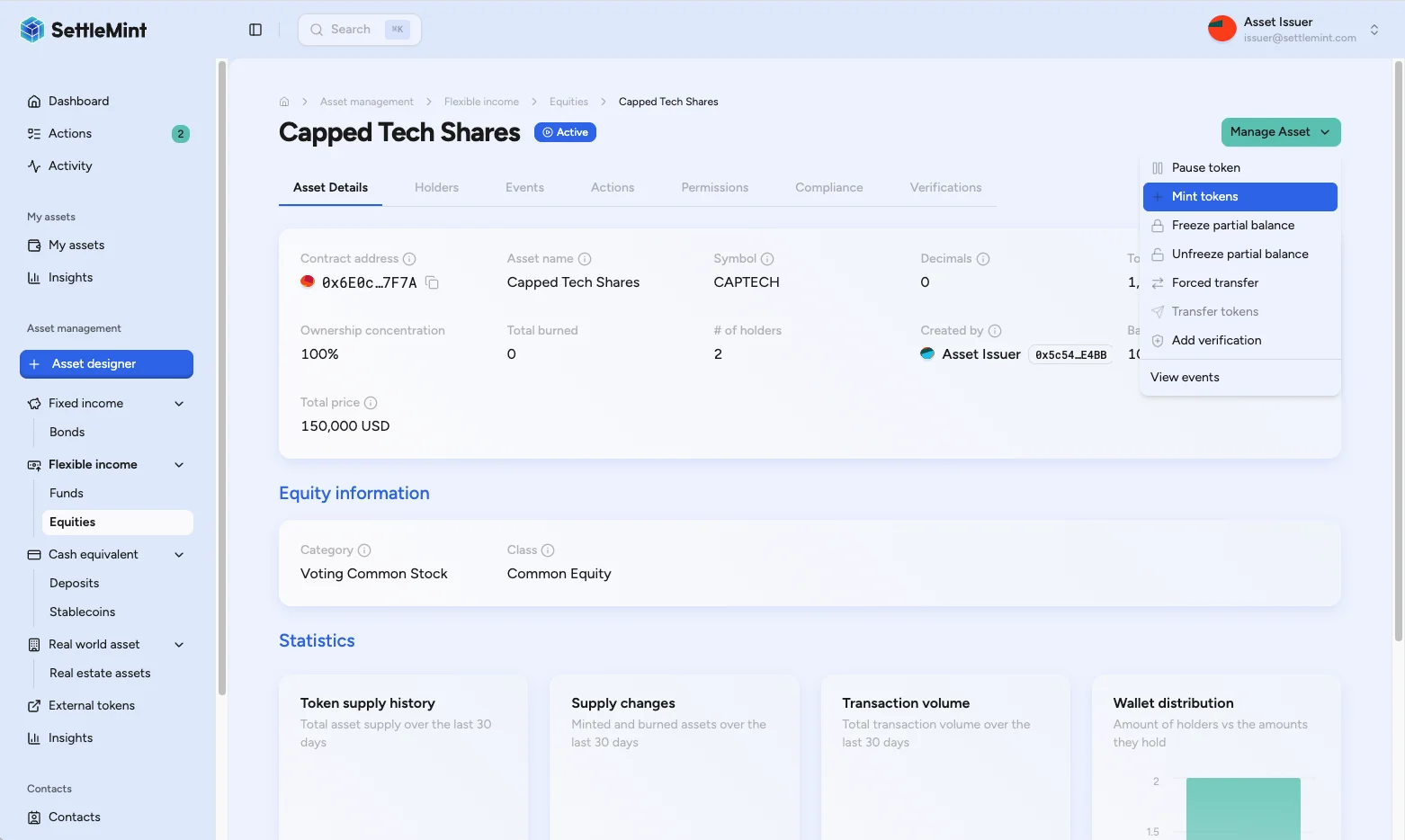
On the asset detail page, open **Manage Asset**. The menu shows the actions available to your role and the asset's current state.
### Choose pause or unpause [#choose-pause-or-unpause]
Choose **Pause Asset** when the asset is active, or **Unpause Asset** when the asset is paused. If neither action appears, confirm that you hold the Emergency role for this asset.
### Review and sign [#review-and-sign]
Review the asset name, current state, and requested action. Confirm the operation, then enter your PIN to sign the blockchain transaction.
### Check the updated state [#check-the-updated-state]
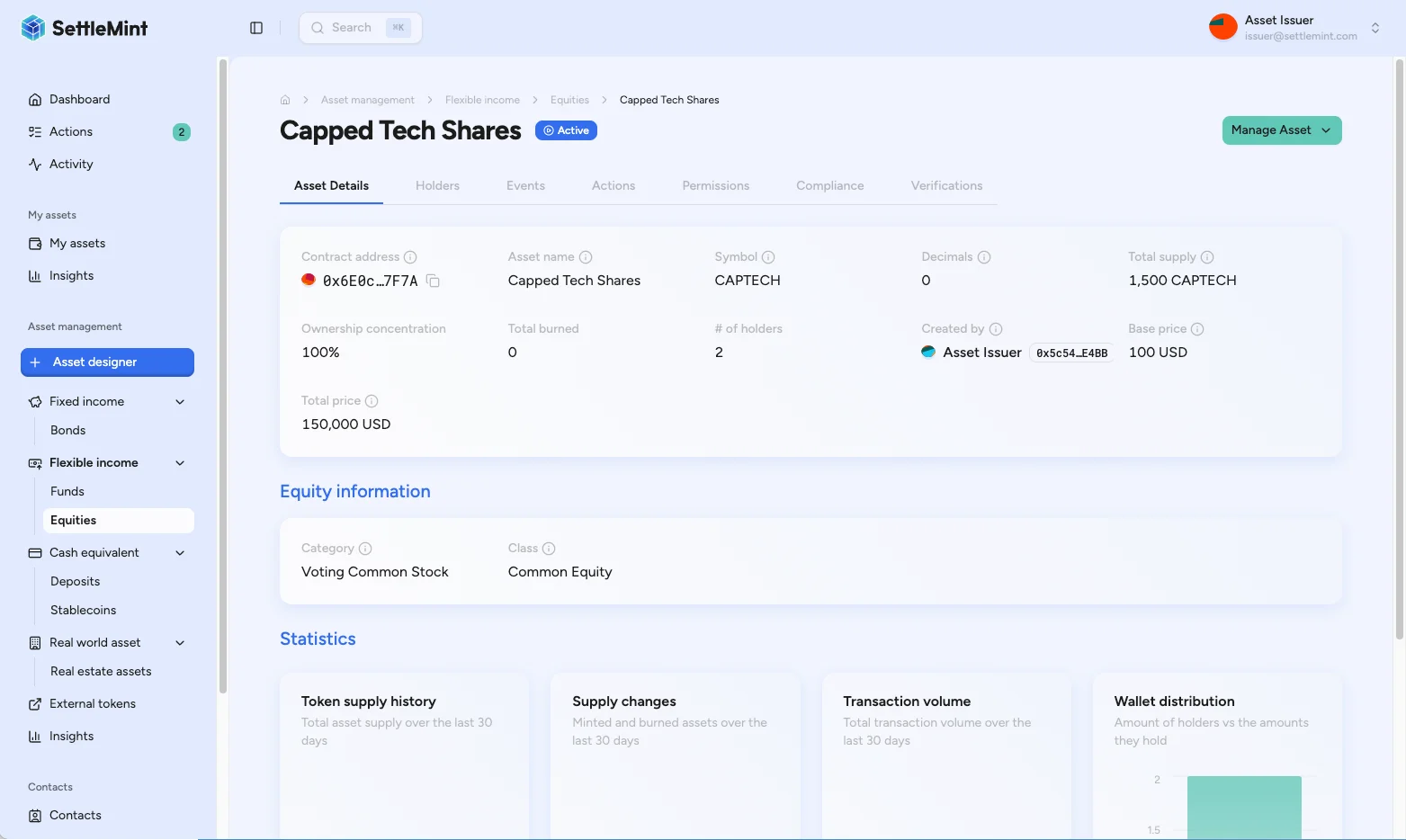
After the transaction confirms, the asset status changes to **Paused** or **Active**. The asset workspace shows the new state.
## What the state means [#what-the-state-means]
| State | Token movement | Operational meaning |
| ---------- | ----------------------------------------------------------------------------------------------------------------------- | -------------------------------------------------------------------------------------------------------------------------------- |
| **Active** | Transfers, mints, and burns can proceed when the caller also passes the required role, identity, and compliance checks. | The asset is open for normal lifecycle operations. |
| **Paused** | Transfers, mints, and burns are blocked until an Emergency role holder unpauses the asset. | The asset is under a global movement hold. Read-only review, role management, and the pause or unpause action can still be used. |
Pause state does not replace compliance policy. After an asset is unpaused, holders and operators still need the required roles, identity verification, claim status, and compliance-module approvals for their specific operation.
## Troubleshooting [#troubleshooting]
| Issue | Check |
| --------------------------------------------------- | -------------------------------------------------------------------------------------------------------------------------------------------------- |
| **Pause Asset** or **Unpause Asset** is not visible | Confirm the Emergency role and pause-control support for this asset. |
| Transaction fails | Check your PIN, wallet verification setup, wallet gas, and network connection. Retry only after you know the previous transaction did not confirm. |
| Status does not update | Wait for confirmation, refresh the asset page, and check the transaction in the block explorer if available. |
| Holders still cannot transfer after unpause | Check holder identity status, required claims, country or investor-list rules, and any other compliance modules attached to the asset. |
## Related operations [#related-operations]
* [Change asset admin roles](/docs/user-guides/asset-servicing/change-asset-admin-roles) explains how to assign the Emergency role.
* [Asset compliance overview](/docs/user-guides/compliance/overview) explains verification and compliance checks that still apply after unpause.
* [Forced transfer](/docs/user-guides/asset-servicing/forced-transfer) explains administrative movement for eligible assets.