# Add administrators
Source: https://docs.settlemint.com/docs/user-guides/platform-setup/add-admins
Grant administrative permissions to users in your organization.
Administrators manage platform-wide operations through wallet-based role grants. Grant only the roles that match the recipient's responsibility.
## Prerequisites [#prerequisites]
* **Permission manager** role (required to grant platform administrator roles)
* Target wallet address (can be any valid address)
## Available platform roles [#available-platform-roles]
Platform administrator roles control system-wide operations. For complete role descriptions, permissions, and best practices, see [Platform Setup Overview](/docs/user-guides/platform-setup/platform-overview). For the full authorization model, including read-only auditor access and per-asset roles, see [Authorization](/docs/architecture/security/authorization).
Platform administrator roles control system-wide operations. Asset-specific roles (Asset Operator, Custodian, Supply
Management, Emergency) are assigned per token during asset creation.
## Steps to add administrators [#steps-to-add-administrators]
### Navigate to platform admins [#navigate-to-platform-admins]
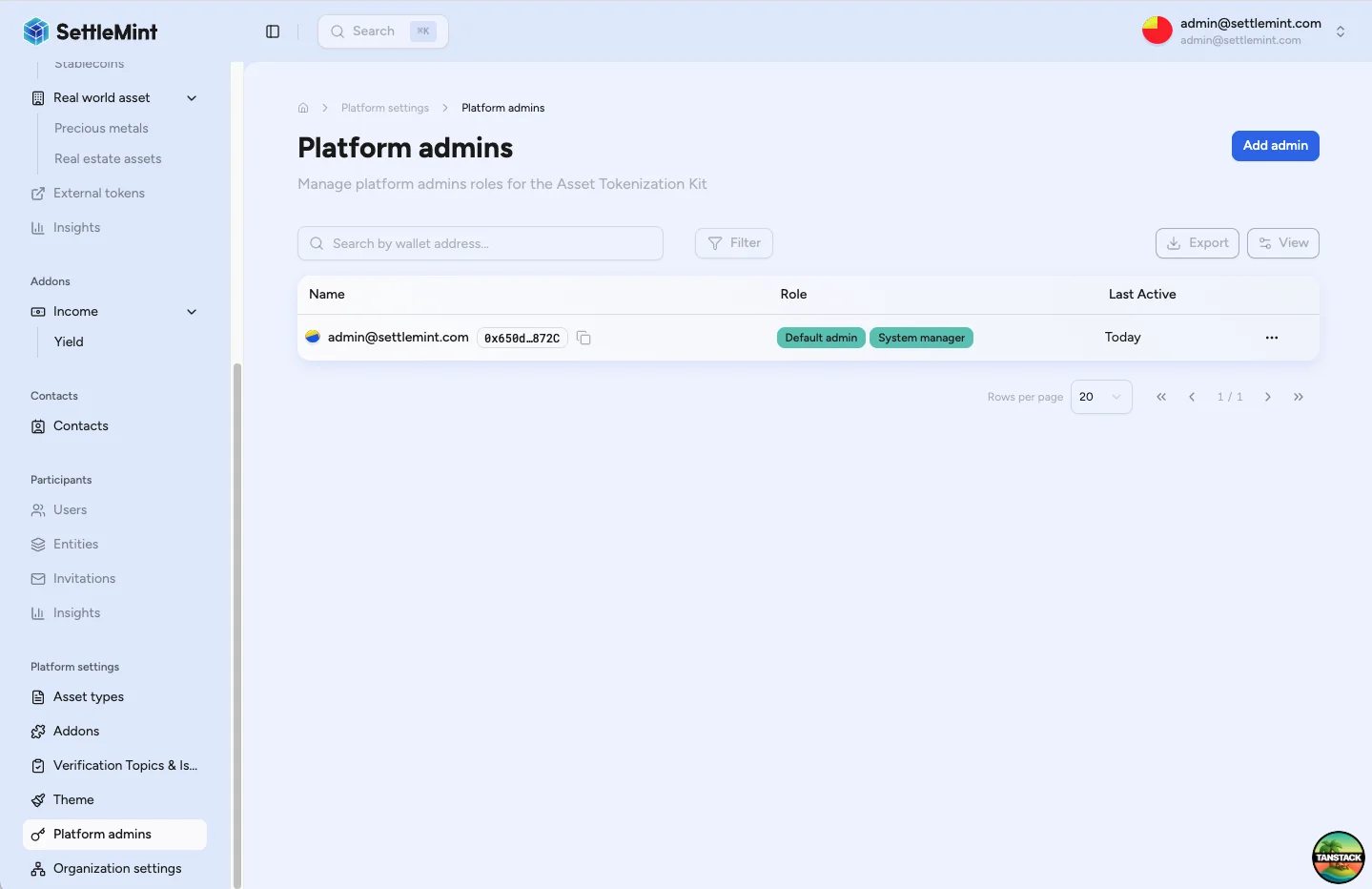
Go to **Platform Settings** > **Platform Admins** in the sidebar. You'll see a table of all current platform administrators with their assigned roles.
### Add new administrator [#add-new-administrator]
Click the **Add admin** button to start adding a new platform administrator. This opens the admin creation flow.
### Choose recipient [#choose-recipient]
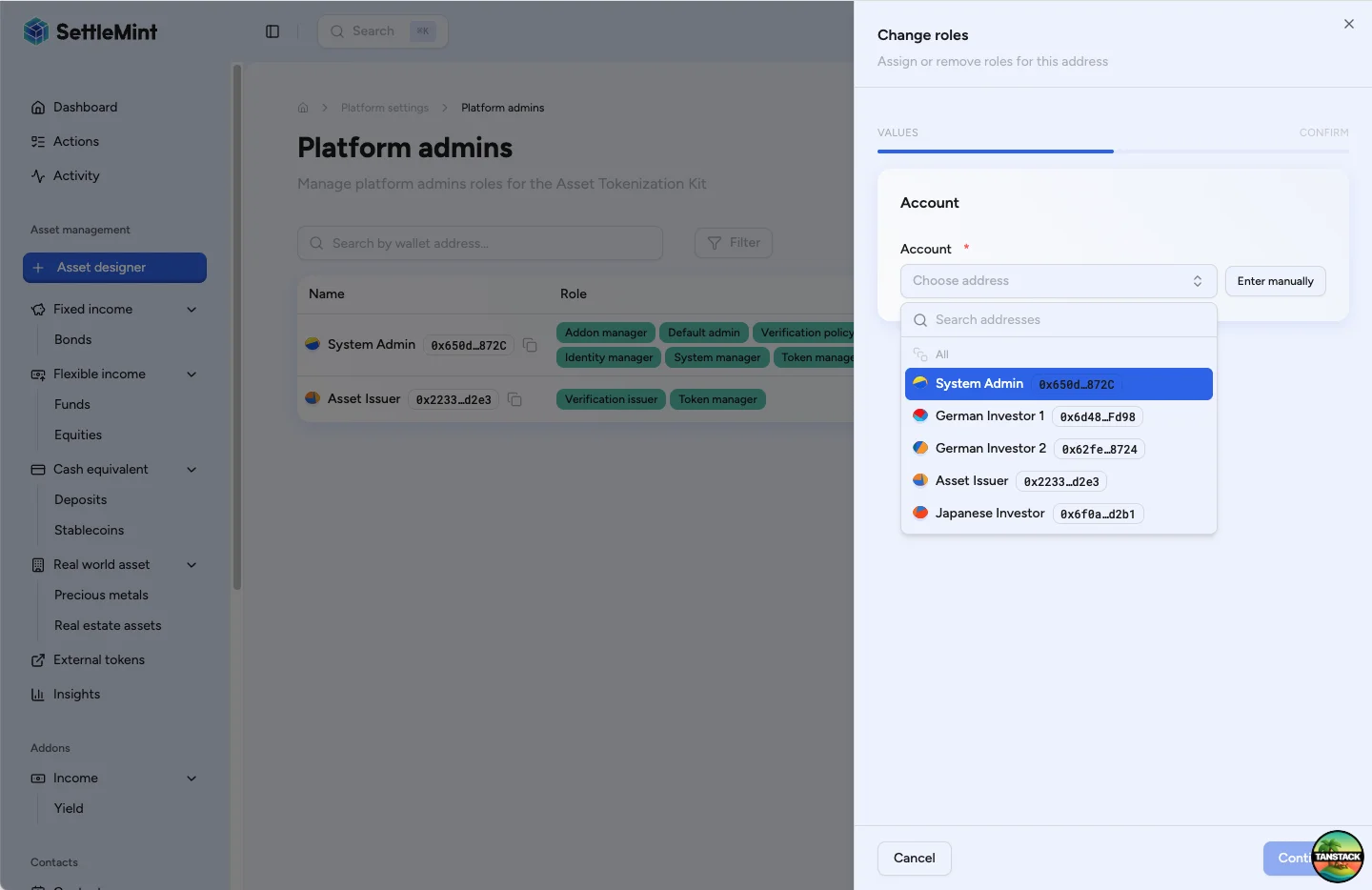
Select the recipient you want to make an administrator using the recipient selector. You can choose from existing users in your organization or enter any valid wallet address manually.
### Select roles [#select-roles]
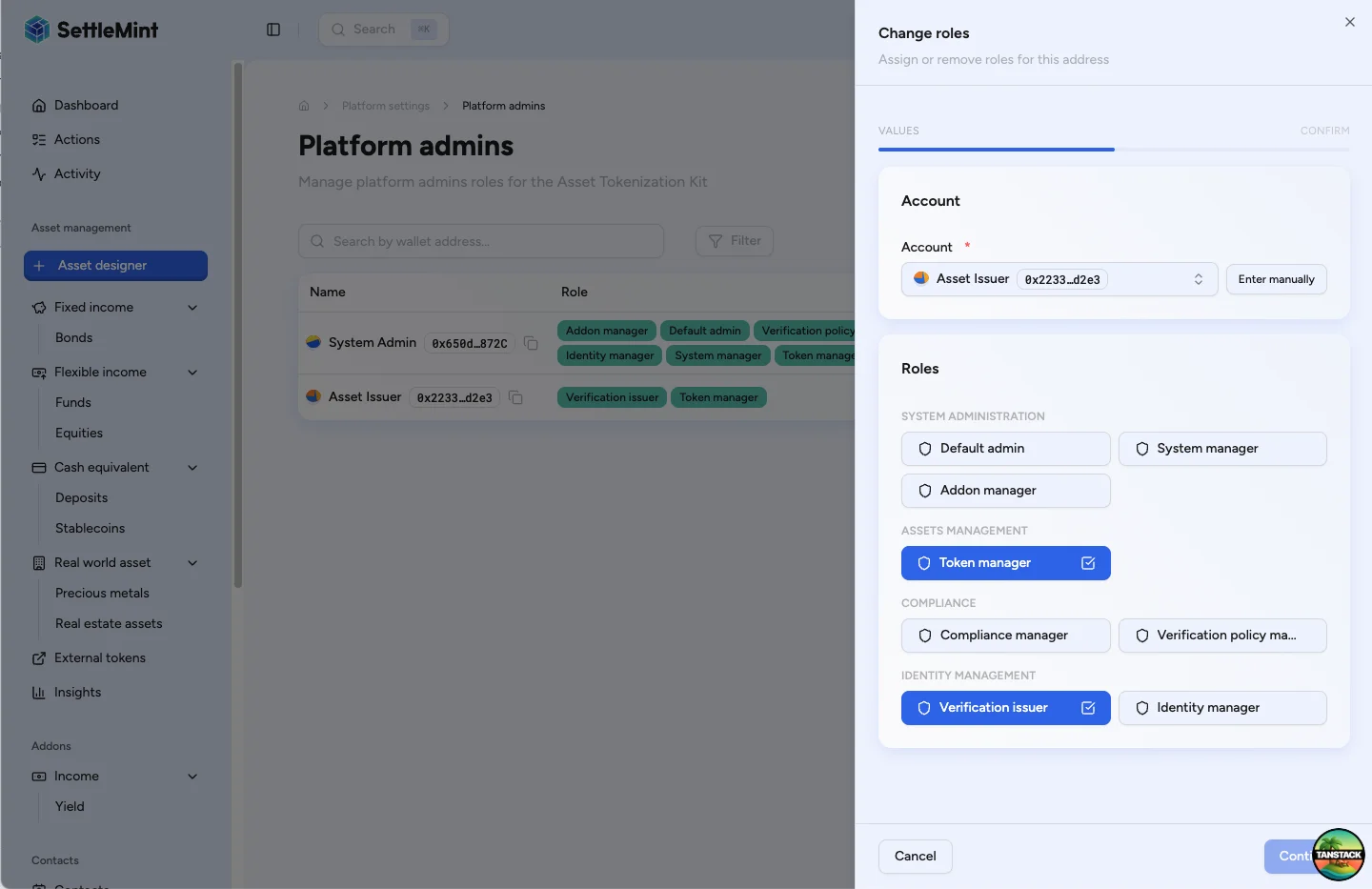
Choose which platform administrator roles to grant. Review available roles and their permissions, select appropriate roles for the user's responsibilities, and consider the principle of least privilege.
### Review and save [#review-and-save]
Click **Continue** to see the summary, then click **Save** to create the administrator. Enter your PIN when prompted. The PIN authenticates the on-chain transaction that grants the permissions.
### Verify administrator creation [#verify-administrator-creation]
After the transaction confirms, the new administrator appears in the Platform Admins table and immediately gains the assigned permissions. The user may need to refresh their session to see admin functions.
## Best practices [#best-practices]
### Role assignment principles [#role-assignment-principles]
* **Least privilege** - Grant only necessary permissions
* **Separation of duties** - Divide critical functions
* **Regular review** - Audit role assignments periodically
* **Document decisions** - Record why roles were granted
## Removing administrative roles [#removing-administrative-roles]
To remove or modify roles for existing administrators, see [Change Admin Roles](/docs/user-guides/platform-setup/change-admin-roles).
Removing roles immediately revokes permissions. Ensure the user has completed any pending administrative tasks first.
## Role permissions reference [#role-permissions-reference]
For detailed permissions and capabilities of each role, see [Platform Setup Overview](/docs/user-guides/platform-setup/platform-overview).
## Troubleshooting [#troubleshooting]
| Issue | Solution |
| ------------------------------- | --------------------------------------------------------------------------------------------------------------------------------------------------- |
| Cannot see Add admin button | • Verify you have Permission manager role
• Check you're in Platform Settings > Platform Admins
• Ensure platform is properly initialized |
| Transaction fails when saving | • Check wallet has sufficient gas
• Verify you still have admin permissions
• Ensure contract addresses are correct |
| User cannot see new permissions | • Ask user to log out and back in
• Clear browser cache if needed
• Verify transaction was confirmed |
## Related guides [#related-guides]
* [Platform Setup Overview](/docs/user-guides/platform-setup/platform-overview) - Complete setup and role reference
* [Change Admin Roles](/docs/user-guides/platform-setup/change-admin-roles) - Modify existing assignments
* [Invite Users](/docs/user-guides/user-management/invite-users) - Add new team members
* [First Admin Setup](/docs/user-guides/platform-setup/first-admin-setup) - Initial platform setup