

Create users
Create or invite users from the Users workspace, and know when to choose direct creation instead of an invitation.
The Users workspace gives administrators two onboarding paths. You can send an invitation that the recipient accepts, or you can create the user account, wallet, and on-chain identity immediately without emailing the recipient.
Use direct creation when you need an account ready now, such as a demo user, training account, test holder, or passive token holder who only needs to receive assets. Use an invitation when the recipient should control the first login and complete their own onboarding.
Prerequisites
- Permission to manage users in the current organisation
- Permission to invite users, create users, or both, depending on the action shown in your workspace
- Wallet verification, such as PIN or 2FA, when you create a user directly
Choose the right onboarding path
| Use case | Recommended path | Why |
|---|---|---|
| Prepare demo, test, or training accounts | Create user | The account, wallet, and identity are ready before the session starts. |
| Prepare passive holders who only need to receive assets | Create user | The administrator can create the account without waiting for the holder to accept an invitation. |
| Add active platform operators | Invite user | The recipient controls the first login and can complete their own onboarding. |
| Add external users under stricter credential policy | Invite user | The user starts from the invitation flow instead of inheriting an administrator-created account. |
Direct creation does not notify the user
Turn off Send invitation email only when you intentionally want to create the account, wallet, and identity without sending an invitation. If email is not configured and you send an invitation, DALP shows a link that you can copy and share manually.
Create a user directly
Navigate to user management
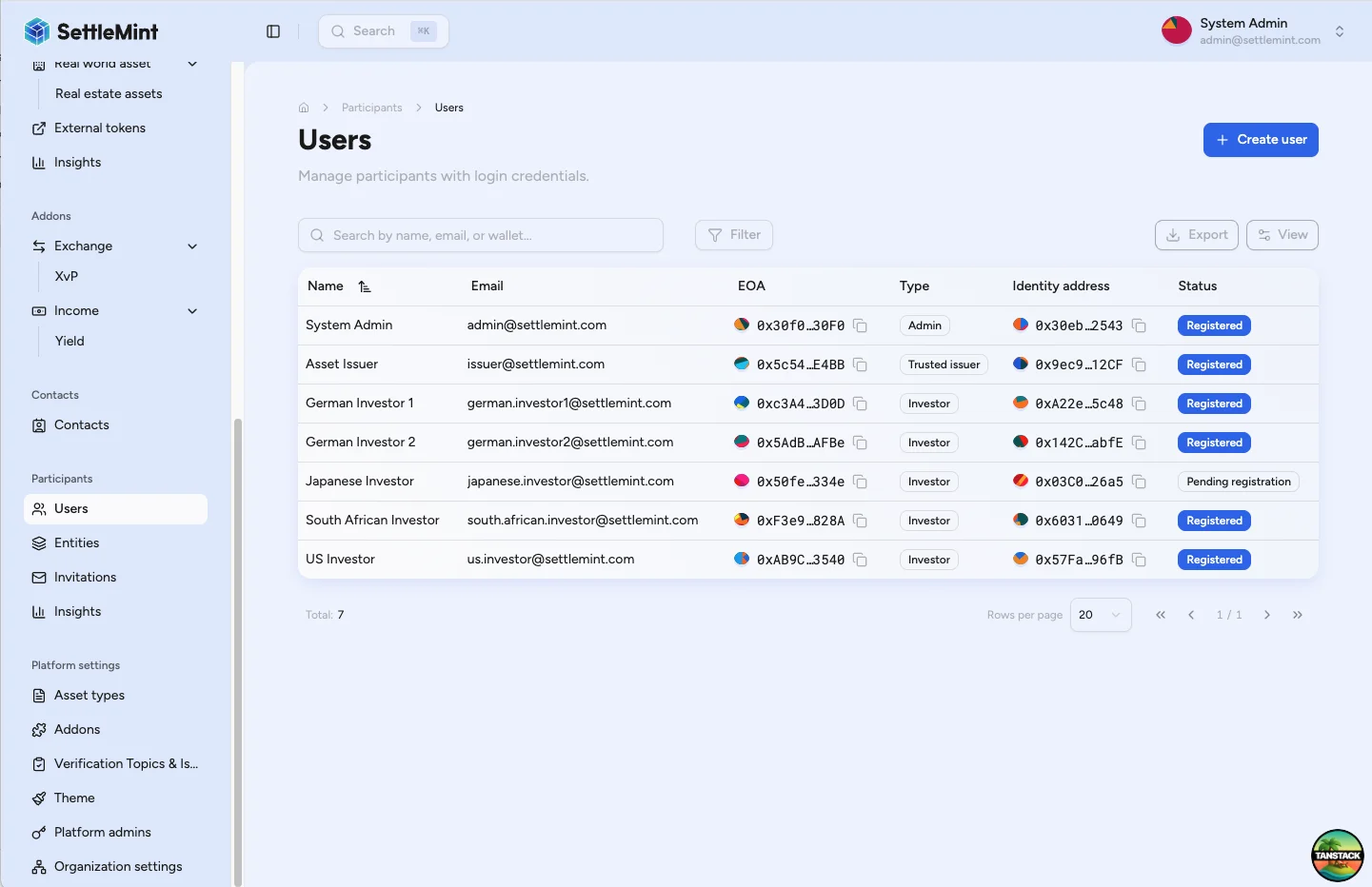
Go to Participants > Users in the sidebar. The action is labelled Create or invite user when your permissions allow either path.
Switch from invitation to direct creation
Click Create or invite user. If the form shows Send invitation email, turn it off. The form then asks for the display name and email address used for the new account.
Enter the user details
Enter the recipient's display name and email address, then click Create user. DALP validates the email address before it opens the verification prompt.
Verify identity creation
Complete the verification prompt with your wallet verification method. This authorises the transactions that create the user wallet and deploy the on-chain identity.
Confirm the account is ready
Once the transactions confirm, the user appears in the Users table with their wallet and identity details. The table shows whether the identity is registered or still pending registration.
What DALP creates
Direct creation creates the user account and the blockchain components needed for that user to hold assets.
| Created item | What it means operationally |
|---|---|
| User account | The email address becomes the sign-in identifier. |
| Generated password | Administrators do not know the password. The user must reset it before signing in. |
| Wallet address | DALP creates the user's externally owned account. |
| Managed private key storage | The platform manages the private key for the created wallet. |
| On-chain identity contract | The user gets the identity used by registry and compliance workflows. |
| Identity registry state | The Users table shows whether the identity is registered or pending registration. |
After direct creation
- Decide whether the user needs access. If the user must sign in, direct them to the platform login and password reset flow.
- Register the identity if needed. If the Users table shows the identity as pending, register the user before relying on the account in asset workflows.
- Assign roles only when needed. Grant administrative roles separately if the user will manage users, assets, compliance, or platform settings.
- Complete compliance checks. Issue or update KYC and other required verifications according to your organisation policy.
- Connect the account to the relevant workflow. Add the user to the registries, cap tables, approvals, or distribution processes that require the account.
Unknown passwords
User passwords are randomly generated and unknown to administrators. Users must use the "Forgot password" flow to set their own secure password.
If the user needs to sign in
The created user can set their own password through the login page:
- Open the platform login page.
- Choose Forgot password or Reset password.
- Enter the email address used during creation.
- Follow the reset instructions and set a new password.
- Sign in with the email address and new password.
Limits and operating notes
- Direct creation does not send an invitation email. Use invitations when the recipient should start from an invitation link.
- Administrators cannot read the generated password. Users who need access must reset their password.
- Directly created users skip invitation onboarding, so review their roles, registry membership, and compliance status before relying on the account.
- Creating the wallet and identity requires wallet verification from the administrator performing the action.
Troubleshooting
| Issue | Solution |
|---|---|
| Create or invite action is not available | Check that you have user management permissions in the current organisation. |
| Direct creation is not available | Check that your account can create users, not only send invitations. |
| User creation fails | Confirm the email address is valid and unique, complete the required fields, and retry after the verification prompt. |
| User cannot sign in | Ask the user to reset their password from the login page and confirm the email address matches the created account. |
| Identity still shows pending | Register the user identity, then refresh the Users table. See Register user. |
Related guides
- Register user - Register a wallet-backed user identity
- Add administrators - Grant administrator access after creation
- Admin operating model - Understand administrator responsibilities
- Developer guide: create users - Create users through the API
Invite users
Send invitations for team members and external partners to join your platform from the Users page, and understand what the recipient completes after accepting.
Participants hub
The Participants hub helps operators review users, entities, identity registration status, KYC evidence, holdings, activity, and security signals.