

Change admin roles
Update platform administrator roles from Organisation settings when operating responsibilities, least-privilege reviews, or wallet assignments change.
Platform administrator roles control who can manage system setup, identity, verification, compliance, asset operations, and operator duties. Change roles when a person's responsibilities change, when a least-privilege review removes unused access, or when you need to assign roles to a specific wallet rather than a participant record.
Prerequisites
- A signed-in account with the Permission manager platform role. DALP stores this role as
adminand requires it for system role grant and revoke operations. - The target person or wallet already exists as a platform administrator.
- The wallet used to confirm the change has the required PIN or wallet verification method.
How the Roles column reads under advanced accounts
When advanced accounts is enabled, an administrator signs in with one account but operates through a separate smart wallet. A granted role can sit on either the administrator's externally owned account or their smart-wallet operations address. The Admins & roles table shows the combined set: the Roles column lists every role held on either address, so the badges match the roles pre-selected in the Change roles sheet.
If the signing account holds a role that the operations address is missing, the table flags the administrator with an out-of-sync status. Use Sync permissions from the row menu to apply those roles to the operations address so the smart wallet can act on them. Treat the administrator as one operator rather than reading the two addresses as separate accounts.
Roles you can grant or revoke
Admins & roles can grant and revoke these system access-manager roles:
| UI label | Role key | What it grants |
|---|---|---|
| Permission manager | admin | Root platform administration and role management. |
| Auditor | auditor | Platform audit and review access. |
| System manager | systemManager | Core platform configuration and upgrade operations. |
| Asset manager | tokenManager | Asset deployment and token-factory operations. |
| Compliance manager | complianceManager | Platform compliance-module setup and enforcement. |
| Verification policy manager | claimPolicyManager | Trusted issuer and claim-topic policy management. |
| Verification issuer | claimIssuer | Claim issuance on registered identities. |
| Identity manager | identityManager | Identity registry maintenance and recovery operations. |
| Feeds manager | feedsManager | Platform data-feed management. |
| Gas manager | gasManager | Gas and transaction-funding operations. |
DALP checks the current role-admin mapping before enabling each role button. The save step then submits system grantRole or revokeRole mutations, which require the connected wallet to hold admin (the Permission manager role). If your platform changes a role's administrator role on chain, the sheet follows that mapping for the role button and still requires admin for the save operation.
Grant and revoke limits
Participant mode submits one role per mutation. Each changed role becomes one participant-based grantRoleByParticipant or revokeRoleByParticipant operation because those routes accept a single role value.
Per-wallet mode submits address-based grantRole and revokeRole operations. Each operation targets one wallet address and can include one role or an array of system role keys. When you add and remove roles in the same save, DALP submits the revoke array and the grant array as separate operations.
DALP only submits differences from the current on-chain state. The save grants missing target roles. The save revokes current target roles that you clear. When no difference exists, the Continue button stays disabled or the save finishes as a no-op.
Participant mode blocks Permission manager revokes. To remove admin from a specific wallet, switch to per-wallet mode.
Confirm another administrator path remains available before you revoke admin from the wallet address.
Choose the right assignment mode
The change roles sheet opens in participant mode when you start from an administrator row. Participant mode is the default path for ordinary administrator maintenance because DALP can resolve the participant and submit one grant or revoke mutation per selected role.
Use per-wallet mode when the change must target a specific wallet address. The sheet shows a warning in per-wallet mode because the update is tied to the address you enter, not to a selected participant record. Per-wallet mode submits the roles to grant and revoke as address-based role arrays.
Some participant-mode revokes stay disabled when the role can only be safely removed by wallet. In that case, switch to per-wallet mode and revoke the role on the specific wallet that should lose access.
Before you change roles
Check the target account and the role boundary before opening the sheet:
- Use participant mode for ordinary administrator maintenance when the target administrator already appears in the Admins & roles table.
- Use per-wallet mode only when the change must apply to one wallet address or when DALP blocks a participant-mode revoke.
- Keep
admin(the Permission manager role) on at least one recoverable administrator path before removing it from a wallet. - Treat platform administrator roles separately from asset administrator roles. Platform roles affect shared setup, compliance, identity, feeds, gas, and audit surfaces.
Steps to change roles
Open platform admins
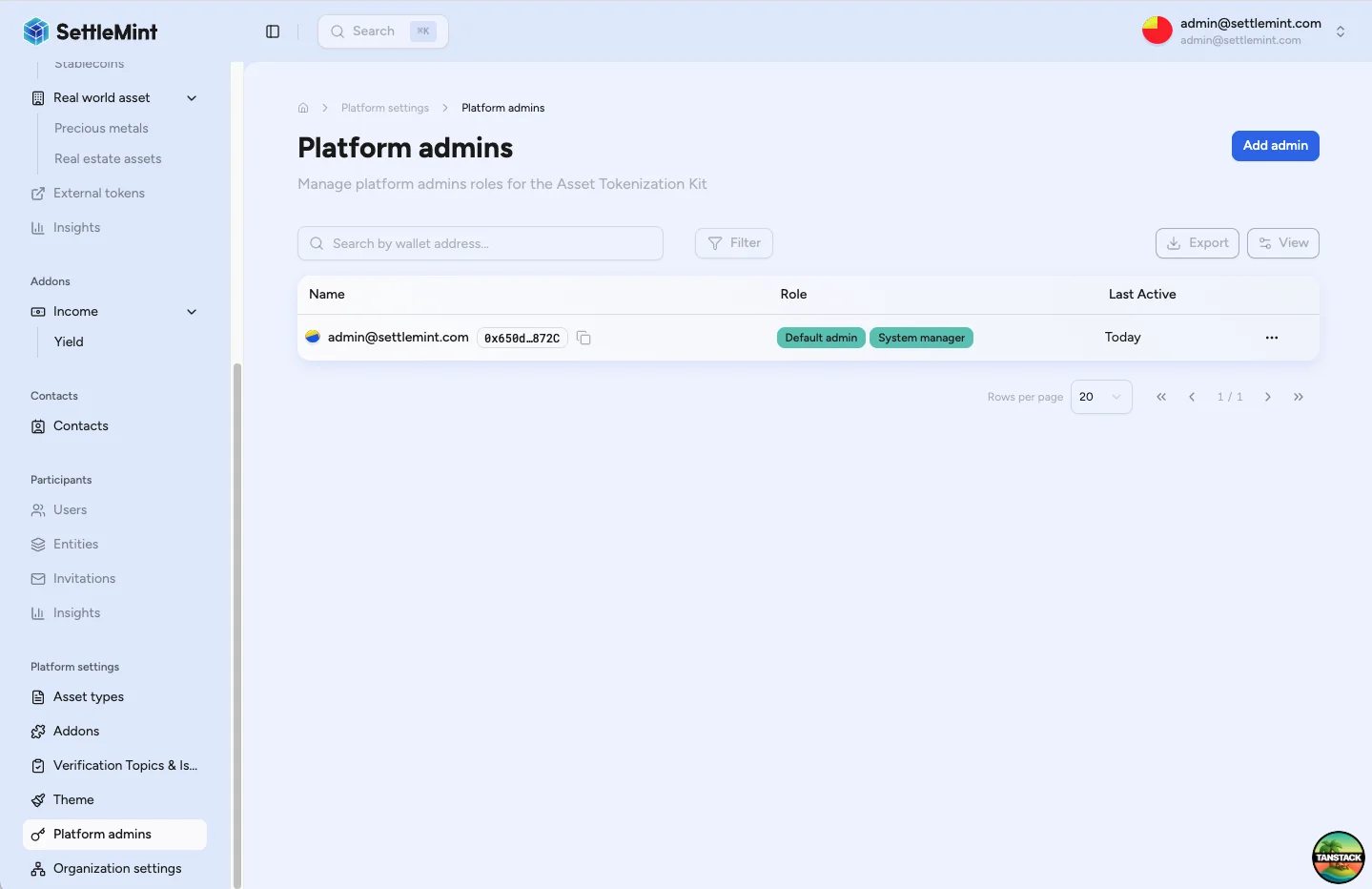
Go to Organisation settings > Admins & roles. The table lists platform administrators, their current role badges, last active time, and row menu.
Open change roles
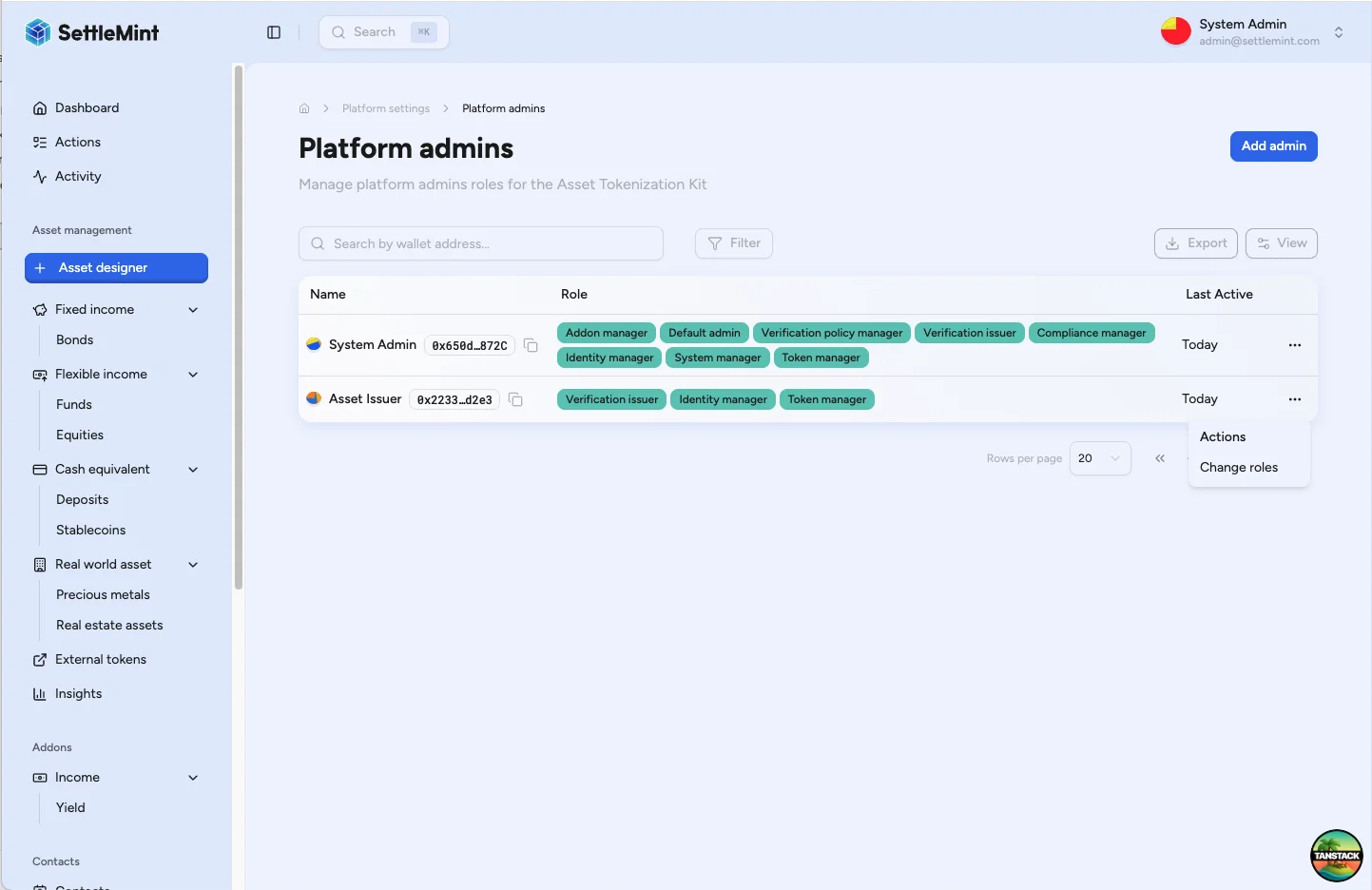
Find the administrator whose roles need to change. Open the row menu and select Change roles.
Select the account mode
Keep participant mode when you are changing roles for the selected administrator record. Switch to per-wallet mode when you need to enter a wallet address directly or when DALP blocks a participant-mode revoke for the selected role.
Select roles to add or remove
Select a role to grant it. Clear a selected role to revoke it.
DALP keeps unavailable role buttons disabled when your signed-in account does not have the administrator role required to manage that permission.
The confirmation step separates roles into Add and Remove groups so you can review the exact change before submitting it.
Confirm the transaction
Select Continue, review the account and role changes, then select Save. Enter the required PIN or wallet verification code when prompted.
Verify the update
After DALP saves the change, return to the Admins & roles table and confirm the administrator row shows the expected role badges. When advanced accounts is enabled, the badges reflect roles held on either the administrator's externally owned account or their smart-wallet operations address. If the row shows an out-of-sync status, use Sync permissions (from the row menu) to copy the signing account's roles to the operations address. If the affected administrator is already signed in, ask them to refresh or sign in again before testing the newly granted permission.
What happens during save
| Mode | How DALP identifies the target | How role changes are submitted |
|---|---|---|
| Participant mode | By participant ID when available, with identity address as the fallback for wallet-backed participant entries. | One grant or revoke operation per changed role. |
| Per-wallet mode | By the wallet address entered in the sheet. | Address-based grant and revoke calls with role arrays. |
The sheet compares the selected roles with the roles already shown for the account. It enables the Continue button only after you add or remove at least one role.
Before submitting a participant-mode change, DALP checks each resolved wallet's current on-chain role state. Grant operations include only wallets that do not already hold the role. Revoke operations include only wallets that currently hold the role.
If every resolved wallet is already in the requested state, DALP treats the change as a successful no-op instead of submitting duplicate work.
If one participant-mode role change fails, DALP reports a partial failure and names the grant or revoke operation that failed. Network errors show as save errors, and the roles remain available for retry after the issue is resolved.
Operational guidance
- Keep platform administrator roles separate from organization roles and asset-level roles. Platform administrator roles affect platform setup and shared controls.
- Grant only the roles needed for the person's current duties.
- Remove roles when duties change, but keep backup coverage for critical operations.
- Coordinate role removals before changing access for an active operator.
- Record the business reason for each role change in your internal access-review process.
Troubleshooting
| Issue | What to check |
|---|---|
| You cannot see Admins & roles | Confirm you are in the correct organization and have a platform administrator role. |
| Change roles is unavailable | Confirm the target is already listed as a platform administrator and your signed-in account can manage the target role. |
| A role button is disabled | Your signed-in account may not hold the administrator role required to manage that permission, or DALP may require per-wallet mode for that revoke. |
| The participant has no wallet | Select a wallet-backed participant or switch to per-wallet mode if the change must target a known address. |
| Save fails | Check the PIN or wallet verification code, wallet connectivity, and gas availability, then retry the change. |
| The updated role is not visible to the administrator | Ask the administrator to refresh the page or sign in again after the table shows the updated role badge. |
| The signing account and operations address hold different roles | Under advanced accounts, the row shows an out-of-sync status when the signing account holds a role the operations address is missing. Use Sync permissions (from the row menu) to copy those roles to the operations address. |
Related guides
- Platform setup overview explains where administrator roles fit in setup.
- Add administrators explains how to add a new platform administrator.
- First admin setup explains the initial platform administrator flow.
- Change admin roles through the API explains the API path for provisioning and automation workflows.
- Change asset admin roles explains token-level administrator changes.