

First administrator setup
Create the first administrator account, deploy the organisation, recover from interruption, and choose the next setup step.
Overview
The first administrator creates the organisation, sets the currency model, and deploys the shared system infrastructure that later users, API keys, roles, compliance checks, and assets rely on. The setup path defines how interrupted deployments resume and which operating task comes next.
Prerequisites
- Access to the platform URL.
- Email address for the administrator account.
- ETH or native tokens for gas fees when your deployment uses public chains.
Process overview
The process starts with account creation, runs through organisation deployment, then opens normal platform operations.
The flow has five working stages:
- Create the administrator account.
- Enter the organisation name, supported target currencies, and base currency on one setup screen.
- Start organisation deployment.
- Wait for the deployment progress screen to complete, or retry the same organisation if setup fails before onboarding completes.
- Choose whether to go to the dashboard, invite team members, or set up a PIN from account security.
What organisation setup bootstraps
The setup screen creates the organisation record, makes it the active one for the first administrator, writes the currency settings, and starts the system deployment workflow.
The deployment creates or prepares the operating infrastructure the organisation needs. The table below shows each bootstrap area and its result.
| Bootstrap area | Result |
|---|---|
| Wallets | Creates the administrator signing wallet when the account does not already have one, then provisions the smart wallet used for account-abstraction execution when enabled. |
| System contracts | Deploys the organisation's system contract from the network directory factory and stores the active system address for the organisation. |
| Registries and roles | Bootstraps identity, trusted-issuer, compliance, token-factory, and add-on registries, then grants the administrator the required system roles. |
| Identity | Registers the administrator's wallet in the organisation's identity registry and links the identity needed for later role, KYC, and asset workflows. |
| Compliance and factories | Registers compliance modules, asset factories, add-on factories, and optional feed or paymaster infrastructure when the active network supports them. |
| Currency settings | Stores the base currency and target currencies. Exchange-rate feeds are created for selected target currencies other than the base currency when feed support is available. |
Creating an organisation from Platform admin > Organizations only creates the record from a name. It does not collect currency settings or deploy the system infrastructure. Use the onboarding setup flow to bootstrap a usable tenant.
The same organisation-name rule applies wherever you set the name: the onboarding setup screen, the create panel in Platform admin > Organizations, and the rename control in organisation settings. The platform trims the name, rejects an empty or whitespace-only name, holds the name to 1 to 32 characters, and stores the trimmed value, so a saved name never keeps leading or trailing spaces.
Required setup inputs
| Input | Requirement | Why it matters |
|---|---|---|
| Organisation name | Required. After surrounding whitespace is trimmed, the name must be 1 to 32 characters, so a whitespace-only name is rejected as empty and the stored name keeps no leading or trailing spaces. DALP derives the URL-safe organisation slug from this name. | Creates the organisation record and the first administrator's owner membership. |
| Target currencies | At least one target currency, with no duplicates. | Defines the currencies the organisation can use for exchange-rate feed setup. |
| Base currency | Must be one of the selected target currencies. At least one selected target currency must differ from the base. | Defines the organisation's base reporting currency and prevents a setup that would create no feeds. |
Use these inputs before starting deployment. Deployment starts only after the organisation name and currency selection pass validation.
Steps
Create the administrator account
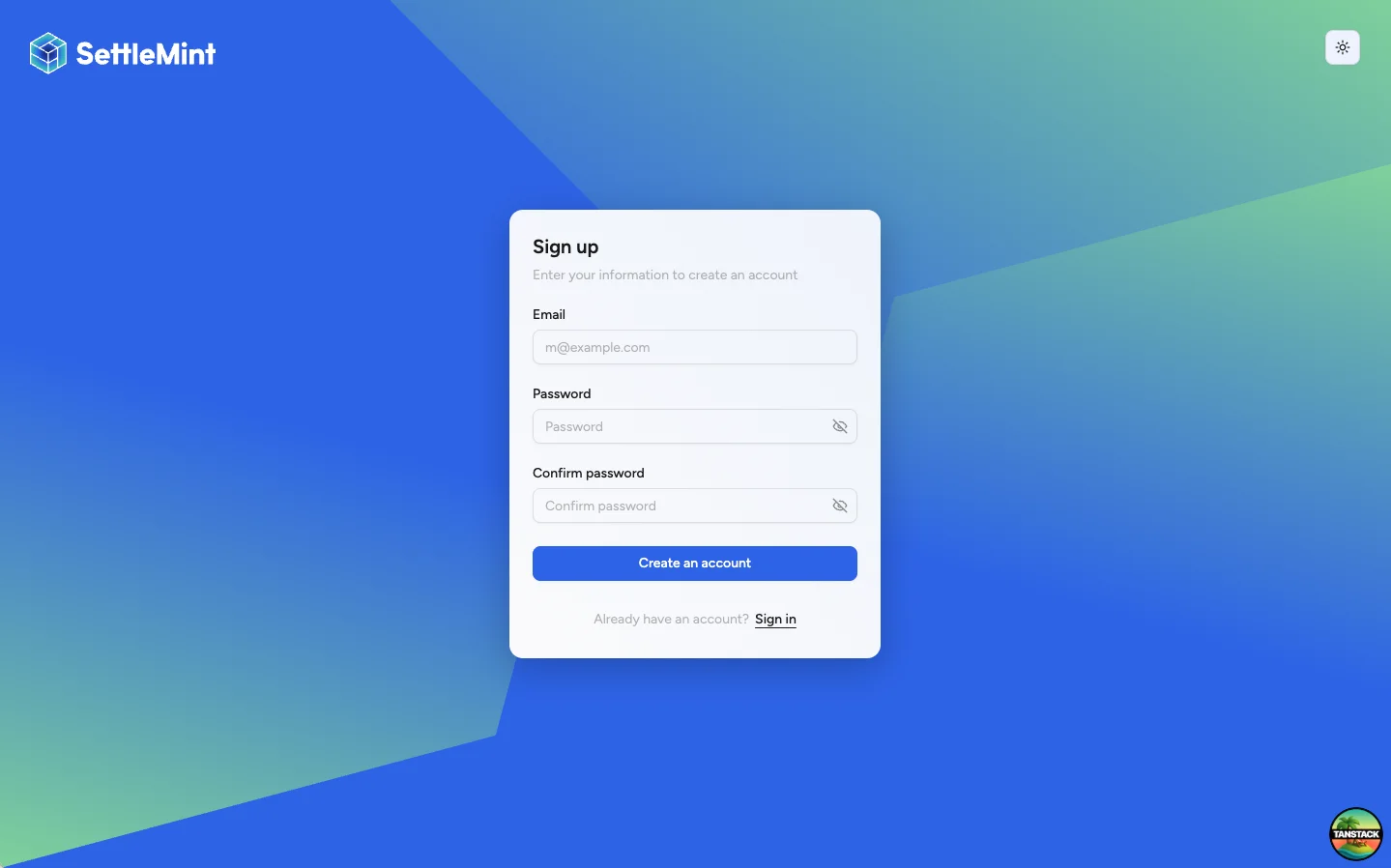
Navigate to your platform and select Sign up. Enter your email address and choose a strong password, then create the account.
Open organisation setup
After sign-up, continue to the organisation setup flow. If the platform does not redirect you automatically, open the path for creating a new organisation.
The setup screen does not require an existing organisation, completed onboarding, or PIN configuration. Those controls are created or configured later in the flow.
Enter organisation and currency details
Enter the organisation name, choose the target currencies it will support, and choose a base currency from that selected set.
Type in either currency picker to narrow the list. Both pickers match by ISO 4217 code, currency name, and country name, so you can find an option without knowing its code. Searching Malaysia or Malaysian Ringgit both surface MYR. Matching ignores case and accents. Each option is labelled Currency name (CODE), so you can confirm the right choice before you select it.
The target list must include the base currency and at least one non-base option. DALP uses the exchange-rate provider's supported-currency snapshot when available. If that data has not loaded yet, the picker starts from the bootstrap list so you can still proceed with a valid choice.
Deploy the organisation
Select Deploy Organisation. DALP starts the deployment and shows a progress screen while the steps run.
Keep the browser session open until the deployment reaches the completion screen. The view reflects the organisation deployment flow. You do not need a separate wallet or identity step in the setup wizard.
The progress screen streams a deployment tree with status for: wallet, system contract, registries, access roles, identity, compliance modules, asset factories, add-on factories, paymaster, and smart-wallet provisioning.
Exchange Rate Feeds appears only when the active chain Directory exposes feeds support. On chains without that support, the view omits the feeds step. This means the step is not available on that chain, not that it failed or was skipped.
Choose the next setup step
When deployment completes, choose the option that matches your next task:
- Go to dashboard to enter the platform.
- Invite team to add the first operators and approval users.
- Set up PIN to open Account security with PIN entry focused.
PIN and recovery-code configuration live in Account security. They are not completed inside the organisation deployment form.
Completion and failure semantics
The organisation is fully ready only after the deployment workflow finishes successfully and DALP marks the onboarding timestamp. After that point, the organisation can invite users and enter the normal dashboard flow.
If deployment fails, the organisation can be partially created. Completed on-chain and off-chain steps are not rolled back. DALP keeps the failed step details in the status view, leaves onboarding incomplete, and offers retry when the same administrator can safely resume the bootstrap.
Retry uses the existing organisation rather than creating a second one. Owners and platform administrators can retry an incomplete organisation. DALP refuses retry when onboarding has already completed or when another deployment is already running for the same organisation. Refreshing the browser during an active run reconnects to the live status stream. When the previous run failed, returning to the setup flow shows the retry state, not a prompt to create a new organisation.
The deployment progress stream survives a brief network drop on its own. If the connection glitches mid-deployment, the steps you have already seen stay on screen and the stream re-opens in the background with backoff. A transient drop is not treated as a failed deployment. When the connection returns, the stream replays the full deployment tree and resumes live updates from the current state. A short outage during a multi-minute deployment is expected and self-heals.
A connection failure is reported only when the link stays down past repeated reconnect attempts. The deployment workflow keeps running while you are disconnected, so you do not need to restart setup over a brief network blip.
Refreshing the browser during an active deployment reconnects to the active progress stream. If the previous run failed, returning to the setup flow shows the retry state instead of asking you to create a new organisation.
Recovering from an interrupted setup
Return to the same organisation setup flow with the same administrator account. When your organisation was created but deployment did not complete, DALP keeps the name locked and asks you to choose the currency details again before retrying.
Do not create a second administrator account or start a separate organisation unless your operator tells you to abandon the original. After deployment completes, the flow sends you to the dashboard or the selected next step instead of offering another retry.
Invited and transfer-ready users
Invited users join an already bootstrapped organisation. Their onboarding validates the invitation, creates a signing wallet when needed, attaches identity state for the organisation's system, and grants membership. It also provisions a smart wallet when enabled. It does not deploy a new organisation system.
Users are not transfer-ready just because they joined an organisation. Transfers and mints still depend on the asset's compliance rules, trusted issuers, identity registration, and any required KYC or eligibility claims. See Register user for the full transfer-readiness model.
Next operating tasks
Use the task that matches your next operator decision:
| Next task | When to use it |
|---|---|
| Set up account security | Set the PIN and recovery codes if you skipped that step from the completion screen. |
| Invite team members | Add the first operators and approval users to the organisation. |
| Add administrative roles | Grant platform administration duties after the first admin exists. |
| Configure trusted issuers | Prepare identity-based compliance checks before relying on asset rules. |
| Create assets | Start token creation after the organisation, roles, and compliance dependencies are ready. |
| Equity tokenization runbook | Follow a longer operating path that combines setup, compliance, asset creation, and servicing. |
Related setup references
- Organization deployment API covers the API equivalent of organization deployment.
- Platform setup overview explains the broader platform setup sequence around first admin setup.
- Register user explains why invited users still need identity and compliance readiness before transfers.
Troubleshooting
| Issue | Solution |
|---|---|
| Organisation name is already taken | Choose a different organisation name or ask your operator whether an earlier setup attempt already created the organisation. |
| Organisation name is rejected as invalid | Enter a name that is 1 to 32 characters after trimming. The platform removes leading and trailing spaces first, so a blank or spaces-only name counts as empty, and any name longer than 32 characters is rejected. |
| Cannot choose the base currency | Select target currencies first. The base currency must be one of the selected target currencies. |
| A currency does not appear in the list | The picker shows each option as Name (CODE), for example Euro (EUR). You can search by ISO 4217 code, currency name, or country name; the picker matches any of them. If a currency is still missing, the exchange-rate provider's supported-currency snapshot may not list it. |
| Deployment fails | Retry from the same setup flow if the screen offers a retry button. Otherwise contact your operator with the displayed error reference. |
| Setup completed but PIN is not set up | Open Account security and set up the PIN from there. |