

Mint assets in the console
Issue new units of a security to investor accounts from the web console, with eligibility checks and safe retry guidance.
The Console creates new token supply and credits it to eligible recipient wallets when you mint. Use this guide when you issue securities from the web interface: shares, bonds, and fund units.
To automate minting, see the API guide for minting assets. For the retry and supply-control model, see mint replay, idempotency, and supply controls.
Typical use cases: primary issuance after a new offering closes, subscription settlement after payment confirmation, stock dividends paid as additional shares, and capital calls where funded commitments receive fund units.
Prerequisites
SUPPLY_MANAGEMENT_ROLEfor the asset (check the Permissions tab).- Each recipient wallet must be registered to an OnchainID in the identity registry.
- Each recipient identity must hold the claim topics required by the asset's compliance rules, such as KYC and AML when the asset uses identity verification.
- The issuers that signed those recipient claims must be trusted for the matching topics in Claim Topics & Issuers.
- For capped assets: sufficient headroom under supply cap.
- For collateralized assets: sufficient collateral backing.
- For assets with a capital-raise limit: a base-price feed for the asset, or an asset identity claim that the price resolver can use as fallback.
- If the asset charges an external transaction fee and you mint to your connected wallet, that wallet must hold enough fee token and approve the external fee feature for the mint fee.
For collateralized assets, minting remains unavailable until a collateral verification is issued by a trusted issuer. If you do not have collateral permissions, ask a claim policy manager to add you as a trusted issuer in Claim Topics & Issuers. The mint form's protocol limit reflects remaining collateral after the current supply is backed, so it may be lower than the total collateral amount shown on the asset.
Prepare an issuer or treasury recipient
An issuer, treasury, transfer agent, or exchange vault can receive minted units only when DALP models the wallet as a regulated recipient. Create the participant, register the wallet in the identity registry, and issue the required claims before you mint to that wallet.
For a vessel or special-purpose company structure, model the legal entity that owns the instrument as the recipient identity. Each vessel or SPC that can hold minted units should have its own participant record, OnchainID, registered wallet, country code, and verification claims. The parent sponsor, supply manager, or servicing operator can keep the console permissions needed to submit the mint, but those operator roles do not make the vessel or SPC wallet eligible to receive tokens.
A practical setup separates three responsibilities:
| Role | Purpose | Required setup before minting |
|---|---|---|
| Supply manager | Submits the mint transaction | Asset-level SUPPLY_MANAGEMENT_ROLE and console access. |
| Compliance or claim operator | Issues verification claims | Claim-issuer permission and trusted-issuer configuration for the relevant claim topics. |
| Vessel, SPC, issuer, or treasury recipient | Receives the minted units | Registered wallet, OnchainID, country code, and the asset's required verification claims. |
Before minting to a vessel, SPC, issuer, or treasury wallet, check the recipient in Participants. The wallet should show as registered, and the identity should have the required verification claims from trusted issuers. A registered identity without the required claims can still fail the asset's compliance check.
If the asset uses a capital-raise limit, check the asset price setup as well as the recipient setup. DALP converts the minted token amount into fiat value during mint validation. The capital-raise module reads the asset's base price from the configured price resolver. If no feed exists and claim fallback is enabled, the asset token itself must have a registered identity with the configured base-price claim.
What the console checks
Before the console lets you continue, each row must have a valid EVM recipient address and a positive amount. The form totals all rows, compares the request with the active protocol limit when a positive remaining limit is available, and shows the projected supply change on the confirmation step.
The mint dialog shows a Minting limit row that reads one of three ways:
| Minting limit row | What it means |
|---|---|
| A numeric value | A cap or collateral limit the console can calculate applies. For a capped asset, the value is the remaining cap. For collateral controls, the value is the remaining collateral-backed mintable supply. A fixed maximum-supply compliance rule also reads as a number, because the console computes the remaining headroom from the asset's configured maximum supply and current supply. When more than one of these applies, the lower value is shown. |
| Subject to compliance limits | A supply-limiting compliance rule caps minting on-chain, but the console cannot calculate the remaining headroom for it. This covers capital-raise and issuance-volume limits, which are measured over a period or in fiat value, and any maximum-supply rule that is scoped to specific senders, receivers, countries, or tokens rather than the whole asset. |
| No minting limit | The console found no cap, collateral, or supply-limiting compliance rule it can read. A capped or collateralized asset whose remaining headroom is already zero can also read this way, because the console only shows a number while the remaining amount is positive. Verify the asset's cap and collateral headroom before minting a large amount: an exhausted cap still reverts the mint on-chain. |
When a numeric limit applies, the console enforces it before you submit. If the total across all rows exceeds the remaining limit, the row shows "Total amount exceeds allowed limit" and the Continue button stays disabled until you reduce the amount. This now covers a fixed maximum-supply compliance rule the same way it covers a capped asset or collateral control, so an over-cap amount no longer advances to the review step to fail only on the on-chain revert.
When the console shows a numeric limit and the asset also carries a supply-limiting compliance rule, it adds a "Subject to compliance limits" note beneath the number. A single fixed maximum-supply rule is enough to trigger this note: the number is the headroom the console can calculate, and the note signals that additional on-chain enforcement applies. A "Subject to compliance limits" qualifier, or the absence of a number, does not mean minting is unconstrained. The compliance rule is enforced on-chain at submission, so a mint above the active limit reverts even when the console cannot show the exact remaining amount. Review the asset's active compliance rules and recent issuance before submitting a large batch.
The console can also show the mint fee and the net amount each recipient receives when the asset has a mint transaction fee. For self-mints, the form checks the connected wallet's fee-token balance and allowance before submission. For third-party recipients, confirm their fee-token readiness before you submit.
Steps
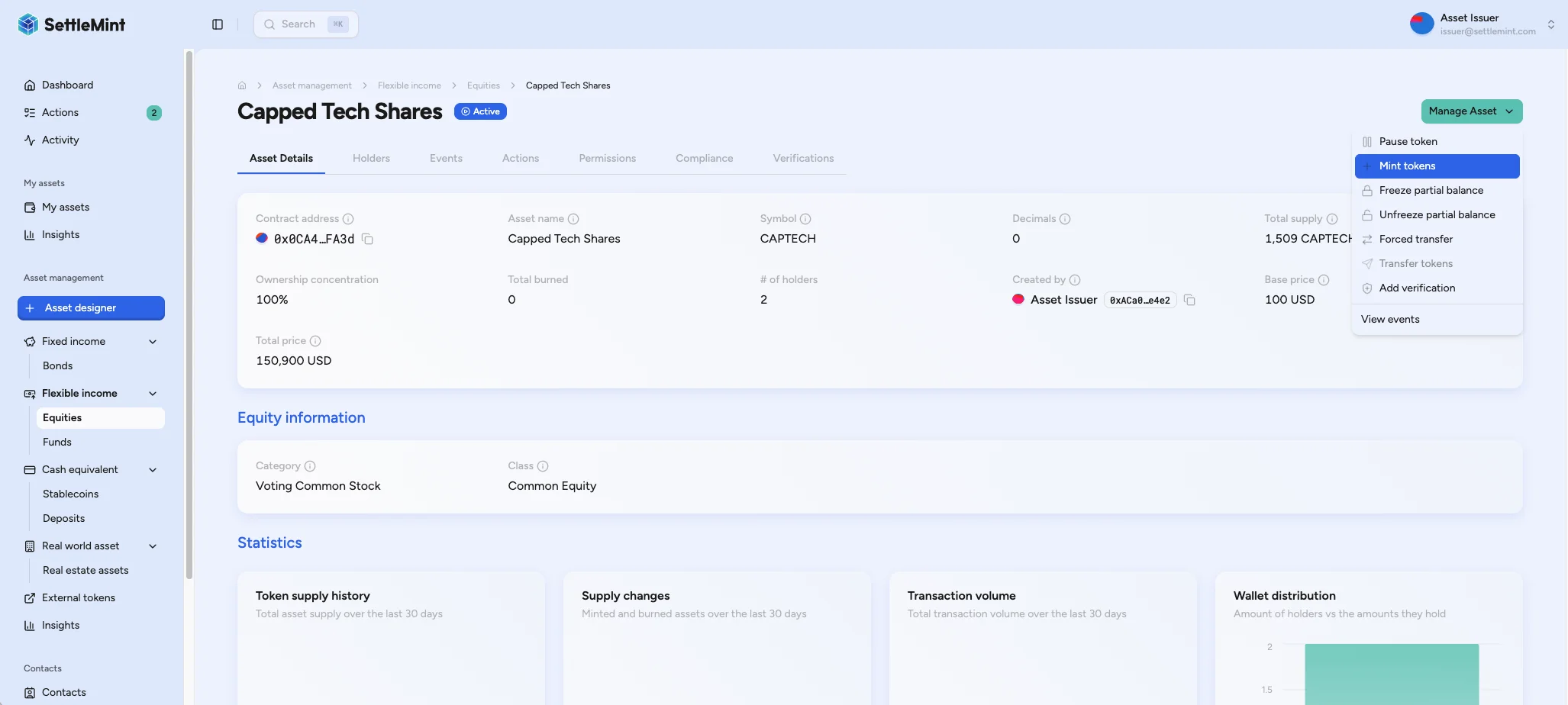
Enter recipient rows
Select a recipient address and enter a positive mint amount. Add one row per recipient when the issuance should credit multiple wallets in one submission.
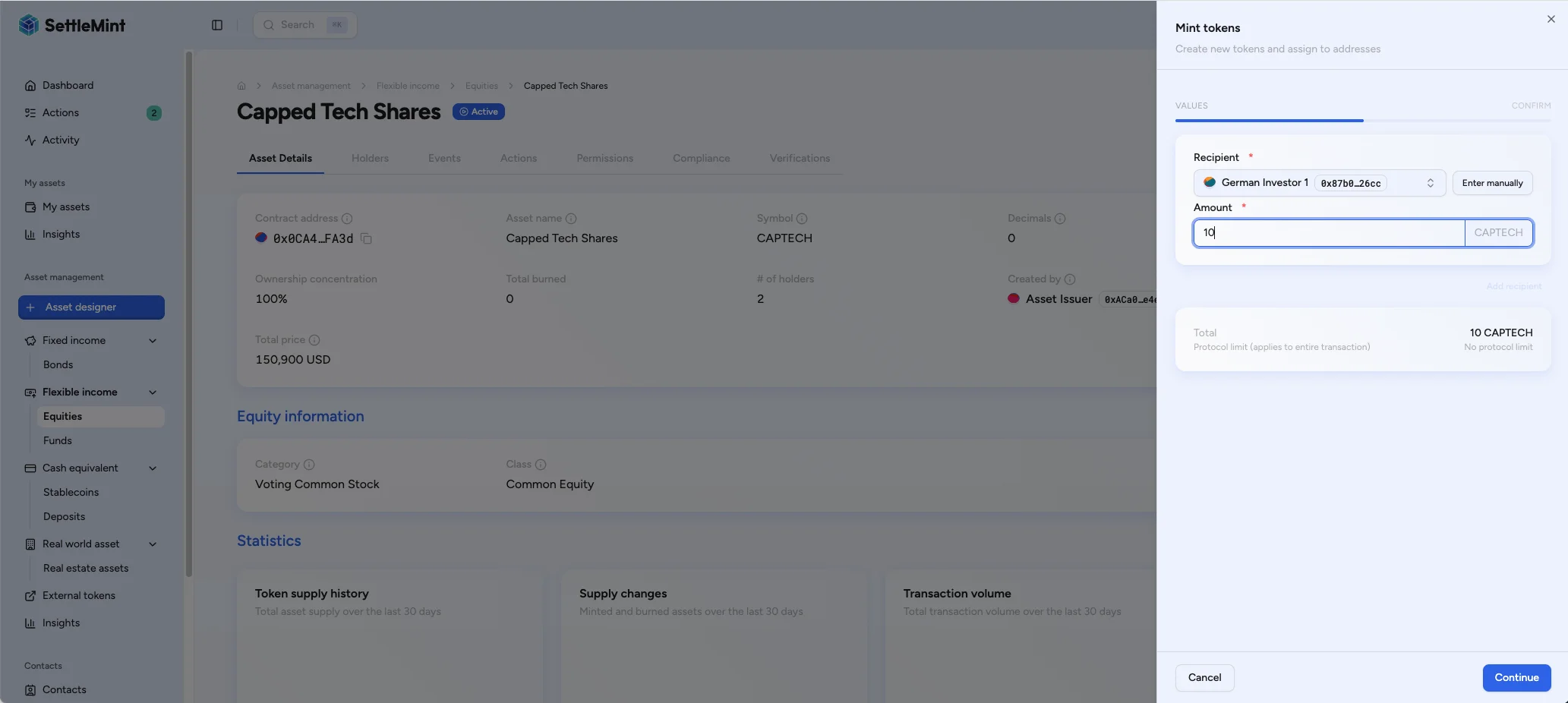
The recipient picker lists participants and contacts that have a wallet registered to their identity for this asset. It shows each one by that registered wallet, so when a participant has more than one wallet, for example after enabling advanced accounts or after adding a smart wallet later, the picker selects the registered wallet. The address you mint to is then the one the registry resolves for that identity.
A registered wallet appearing in the picker is not a guarantee of full compliance. The filter confirms registry presence only, so a shown recipient can still be missing required claims or trusted issuers. Confirm each recipient meets the asset's compliance rules before you submit. Participants without a registered wallet are filtered out, and the picker shows a hidden-count notice such as "2 participants hidden". Choose Show all to reveal every participant, including those without a registered wallet. Minting to an address that fails the compliance check reverts on-chain.
A holder stays hidden when no wallet is registered to its identity. The picker checks for an active, not-lost registered identity; it does not check claims or trusted issuers. A holder with a registered wallet but missing KYC still appears in the picker, while a KYC-approved holder without a registered wallet remains hidden.
To make a hidden holder visible in the picker, register a wallet to the holder's identity first. See Register user and Claims and identity.
After the holder appears in the picker, confirm compliance before minting. A KYC-gated asset still requires the holder to hold an approved KYC profile and an on-chain KYC verification, issued by a trusted issuer, before the mint succeeds on-chain. To resolve a compliance gap after the holder is visible:
- The holder submits a KYC profile from their account profile and selects Submit for review. See Provide KYC data.
- An Identity Manager approves the submitted profile. See Manage KYC data.
- A trusted issuer issues the KYC verification on the holder's identity. See Verify KYC and Configure trusted issuers.
The picker suggests holder accounts only. Deployed token contracts, claim issuers, and add-on identities each register their own on-chain identity, but they are not mint recipients, so the picker leaves them out of the suggestion list. This keeps real holders visible instead of crowded out by contract entries, and stops a contract address from being minted to by accident. To mint to a contract address on purpose, switch the field to manual entry and paste the address. A saved address-book contact whose wallet is a contract address can still appear, because the holder filter applies to the suggestion list, not to contacts you curated yourself.
Each recipient must be distinct within a single mint. When you add a second row, the picker hides any address already chosen in another row, so you cannot select the same recipient twice from the suggestions. If you switch a row to manual entry and paste an address that already appears in another row, the row shows This address is already added as a recipient and Continue stays disabled until you change it. Give each recipient its own row once, then set that row's amount to the full issuance for that wallet.
Confirm and submit
Review the recipients, total mint amount, projected total supply, fee preview, and wallet verification challenge. Submit only when the recipient setup, protocol limit, and fee readiness match the intended issuance.
When you mint to your connected wallet and the asset charges an external transaction fee, the confirmation screen checks your fee-token balance and allowance before you submit. When the balance is sufficient but the allowance is too low, use Approve fee allowance from that screen, then return to complete the mint.
For third-party recipients, confirm their fee-token balance and allowance before submitting. The confirmation screen does not check wallets you do not own.
If the submission result is unclear
Treat a submitted mint as pending until DALP shows a transaction status, an indexed supply change, or a webhook outcome. A browser refresh, network timeout, or delayed wallet approval is not proof that the mint failed.
Before submitting another mint for the same business instruction:
- Check the asset activity, transaction status, and indexed total supply.
- Confirm whether the original recipient rows and amounts already appear in the asset state.
- Use a new mint submission only after reconciliation shows the previous instruction did not create the intended supply.
For API integrations, reuse the same Idempotency-Key only when retrying the same mint payload and signing route. If the recipient, amount, asset, executor, or wallet route changes, use a new key. For the full retry model, see mint replay, idempotency, and supply controls.
Troubleshooting
| Issue | Solution |
|---|---|
| Mint button disabled | Verify SUPPLY_MANAGEMENT_ROLE assignment and confirm collateral backing for collateralized assets. |
| Recipient not eligible | Check that the recipient wallet is registered to an OnchainID, has the required verification claims, and received those claims from trusted issuers. To resolve a missing claim, follow the recipient eligibility resolution path: the holder submits a KYC profile, an Identity Manager approves it, and a trusted issuer issues the verification. See Verify KYC and Configure trusted issuers. |
| Expected recipient missing from picker | The picker hides participants without a registered wallet. Confirm the participant has a registered wallet in the identity registry. If the wallet is registered and the participant still does not appear in the picker, verify the registered identity is active and not marked lost. The picker does not check claims or trusted issuers, so a holder with a registered wallet but missing KYC still appears in the normal picker; the mint later reverts on-chain for compliance reasons. To register a wallet, see Register user and Claims and identity. To resolve a missing claim or issuer, see Verify KYC and Configure trusted issuers. |
| Need to mint to a contract address | The picker suggests holder accounts only, so token contracts, claim issuers, and add-on identities do not appear. Switch the recipient field to manual entry and paste the contract address. Confirm the address is the intended on-chain recipient before you submit, because a mint into a contract is rarely the goal. |
| Address already added as a recipient | A recipient row holds an address that already appears in another row. Each recipient must be distinct within one mint, so the picker hides addresses chosen in other rows and a manually pasted duplicate is blocked. Remove the duplicate row and put the full amount for that wallet on its single row. |
| No claim fallback | For assets with a capital-raise limit, add a base-price feed for the asset or issue the configured base-price claim to the asset token identity before minting. |
| Total amount exceeds allowed limit | The total across all rows is above the remaining limit shown in the Minting limit row, so Continue is disabled. This applies to a capped asset, a collateral control, and a fixed maximum-supply compliance rule. Reduce the amount to the remaining limit or less, or request a cap increase. |
| Mint reverts under a compliance limit | The mint exceeds an active capital-raise, token-supply, or issuance-volume limit that the console cannot calculate in advance. Reduce the amount or review the limit configuration. The mint dialog shows Subject to compliance limits when one of these rules applies. |
| Insufficient collateral | Issue a new collateral verification with a higher amount. |
| External fee warning | Fund the connected wallet with the fee token, or approve the external fee feature to collect the mint fee. |
| Unclear submission outcome | Reconcile transaction status, asset activity, and indexed supply before submitting another mint for the same instruction. |
Keep DALP control records portable during an exit
Keep issuer authority, investor eligibility, lifecycle governance, and audit evidence portable during an asset servicing exit.
How to transfer assets in the console
Send tokens you hold to one or more recipients from the DALP console, with per-recipient amounts, eligibility checks, and a balance preview before you submit.