

Create an asset in the console
Deploy a new tokenized asset with the Asset Designer wizard in the web console.
Creating an asset in the DALP console deploys a new tokenized security through the Asset Designer wizard. This guide is for operators using the web interface. If you need to automate the same workflow, use the API guide for asset creation.
The Asset Designer wizard guides you through selecting an asset class, choosing a published instrument template, configuring any template fields, and enabling compliance modules.
Common use cases:
- Bond issuance - Create fixed-income securities with maturity dates, coupon payments, treasury funding, and redemption controls
- Equity tokenization - Issue shares with voting rights and dividend distribution
- Fund launch - Create investment fund units with NAV tracking
- Stablecoin creation - Deploy collateral-backed stable value instruments
- Deposit certificates - Tokenize bank deposits or cash equivalents
- Precious metal tokenization - Configure metal-backed assets with weight, purity, storage, and valuation fields
- Real estate fractionalization - Divide property ownership into tradeable fractions
Prerequisites
- Asset manager role - You must have the Asset manager role assigned on the system access manager
- Completed onboarding - Your account must be fully onboarded with a verified identity
- Wallet setup - Your wallet must be configured with PIN or OTP verification
- Instrument template available - A published instrument template for your desired asset class must be available and backed by a usable token factory
Asset types
The platform supports seven asset types organized into four classes:
| Asset class | Asset types | Description |
|---|---|---|
| Fixed Income | Bond | Debt securities with maturity dates and fixed payments |
| Flexible Income | Equity, Fund | Variable return assets like shares and investment funds |
| Cash Equivalent | Stablecoin, Deposit | Stable value assets pegged to fiat currencies |
| Real World Asset | Precious Metal, Real Estate | Tokenized physical assets and property ownership |
Steps
Open the asset designer
Click Asset designer in the sidebar under Asset management to open the Asset Designer wizard.
The wizard runs as a routed flow under /asset-designer. Each step has its own URL, so browser Back and Forward move between Asset Designer steps instead of leaving the flow. If you refresh the page while creating an asset, the wizard restores your in-progress values and returns you to the current step in the same browser session.
If you use DALP navigation to leave the /asset-designer wizard after manually choosing an asset class, selecting a template, entering an asset name or symbol, choosing a compliance template, or setting initial permissions, DALP asks you to confirm before discarding the wizard state. After a successful deployment, confirmed in-app leave, or sign-out, the saved wizard state is cleared.
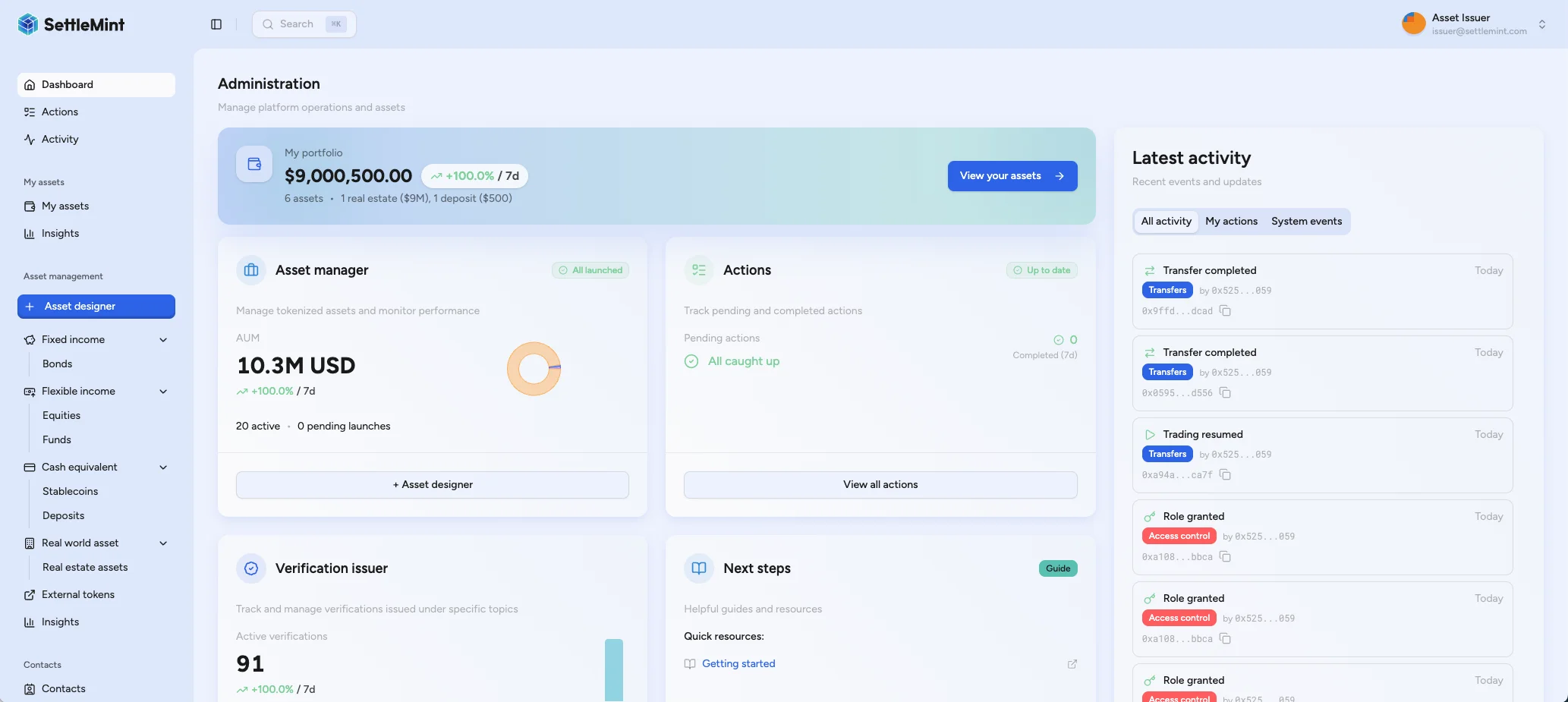
Select asset class
Choose the asset class that matches your security type. DALP shows the published instrument templates available for that class.
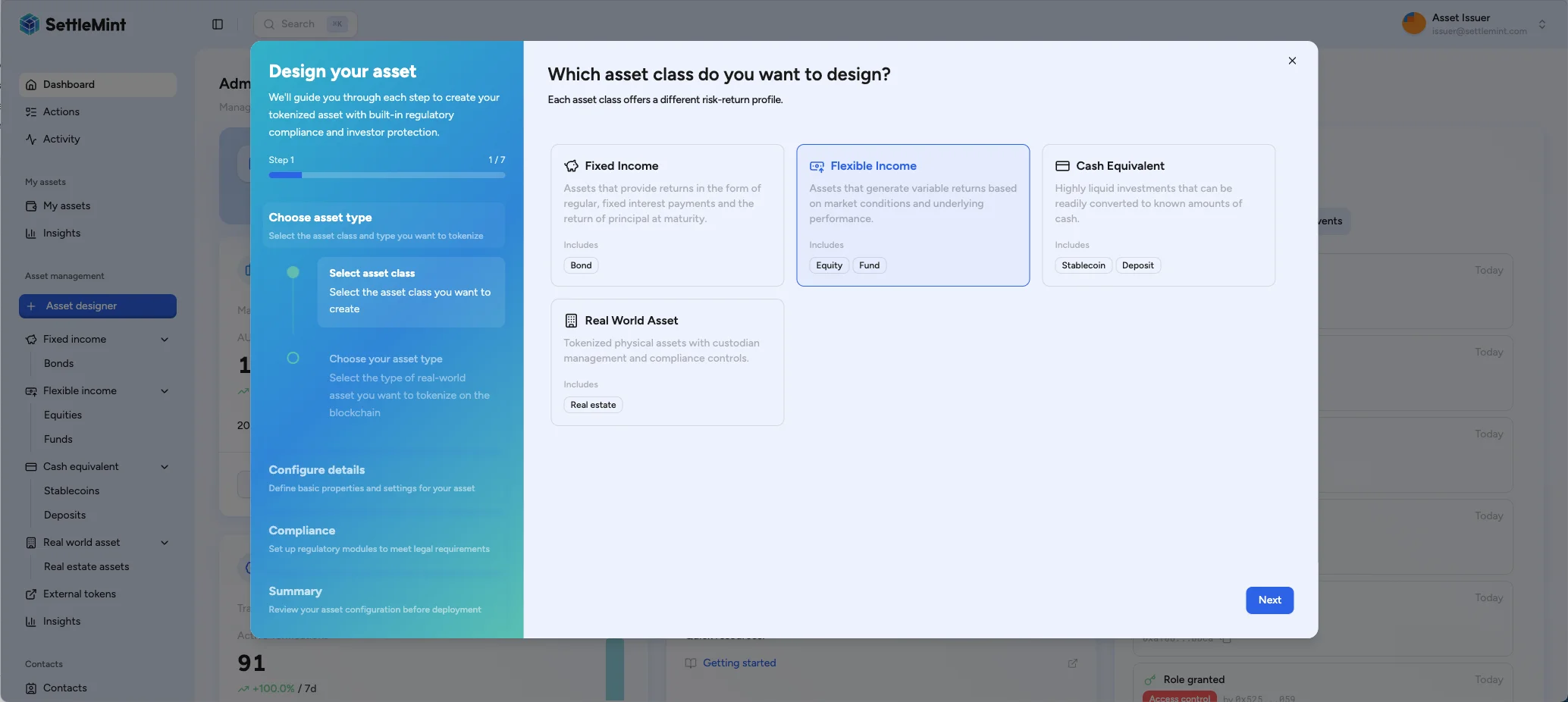
Select instrument template
Choose the published instrument template for the asset you want to create. The wizard shows the required features and compliance options attached to each available template.
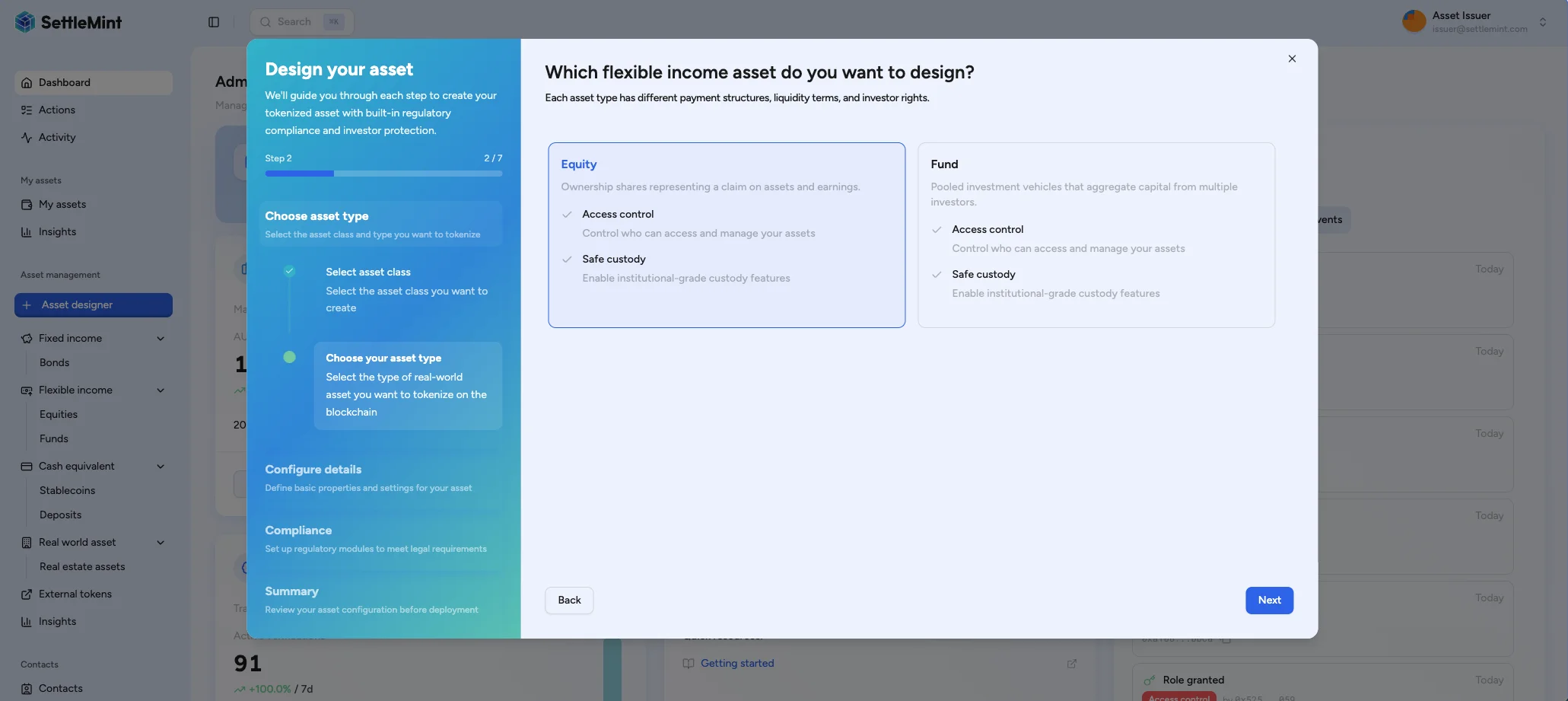
Review template-required features
Instrument templates can include Required features. When a template has required features, the Asset Designer shows them as badges during template selection. The deployed asset inherits those token-level behaviors from the selected template, then asks for additional inputs only for the badges that need configuration.
Template-specific fields and defaults
Selecting an instrument template can prefill feature settings and metadata values in the wizard. The Asset Designer clears feature-specific values from the previous selection before applying the new template, so switching templates does not carry old maturity, yield, fee, or conversion inputs into the next asset.
Templates can also add metadata fields to the follow-up details step. These fields can be text, number, date, enum, ISIN, or address inputs. Required metadata fields must be filled before the wizard continues.
Template defaults are applied when you select the template.
For required-feature badges, fields that are fixed by the template can remain hidden while still being submitted with the asset configuration.
Template feature settings that are not part of the template's required features can seed the wizard, but they are not submitted as standalone feature configurations.
Self-contained required features
These badges do not add a follow-up configuration step from the required-feature badge itself. Use the token feature catalog for the canonical behavior reference.
Current self-contained badges include Historical Balances, Voting Power, Permit, Transaction Fee, Transaction Fee Accounting, Fixed Treasury Yield, and Conversion Minter. Transaction-fee badges only create non-zero fee behavior when the template supplies fee settings; Fixed Treasury Yield only creates a configured yield schedule when the template supplies yield settings.
Configurable required features
These badges show follow-up inputs in the Asset Designer after template selection. Use the token feature catalog for canonical feature behavior; this table only lists the extra guided inputs.
| Feature | Asset Designer asks for |
|---|---|
| Maturity Redemption | Maturity date, denomination asset, face value, and redemption treasury. |
| AUM Fee | Management-fee basis points and recipient settings. |
| External Transaction Fee | External fee token, absolute mint, burn, or transfer fees, and recipient settings. |
| Conversion | Target token, denomination asset, discount, conversion window, debt handling, and related rules. |
Features versus compliance modules
Required features define what the token can do. Self-contained badges are inherited directly from the template; transaction-fee badges only create non-zero fee behavior when the template supplies fee settings. Configurable badges add feature-specific inputs to the guided setup. Compliance modules define who may hold, transfer, mint, or redeem under your policy.
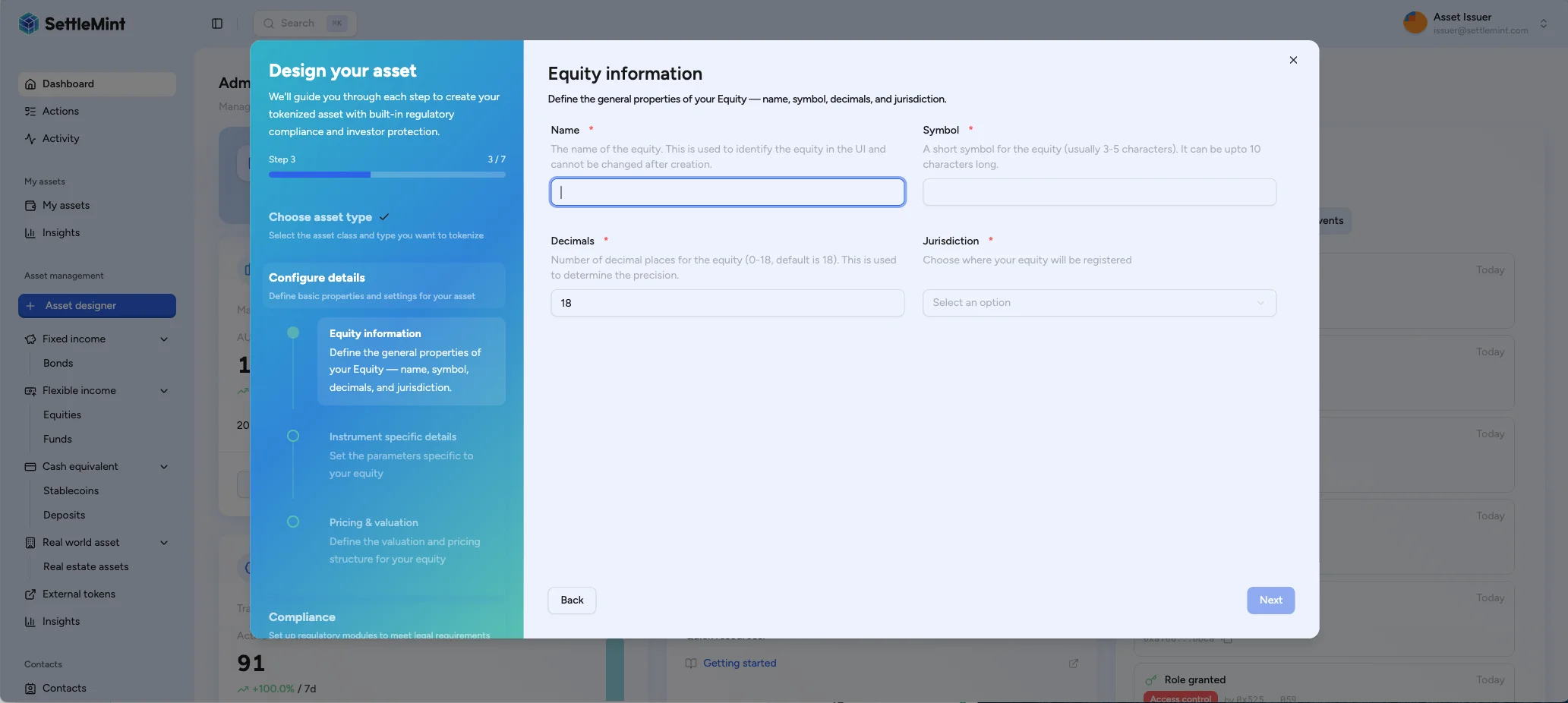
Configure asset basics
Enter the core asset properties. The Asset Designer shows live character counters below text inputs and checks these values before you can continue, so use values that describe the exact instrument you intend to deploy.
| Field | What to enter |
|---|---|
| Name | Full asset name, up to 50 characters, such as "Acme Corporate Bond 2025". |
| Symbol | Trading symbol using uppercase letters and numbers. The field accepts up to 12 characters and suggests 3-12 characters for market-style use. |
| Decimals | Decimal precision from 0 to 18. Use 18 for standard ERC-20-style precision, 6 for USDC-style precision, or 0 for whole units only. |
| Jurisdiction | Country for the asset's regulatory jurisdiction. DALP submits this as an ISO 3166-1 numeric country code. |
When the symbol field is empty, the wizard suggests a symbol from the asset name. A one-word name uses the first five letters, a two-word name combines the beginning of both words, and longer names use an acronym. You can replace the suggestion before continuing.
When DALP shows an availability status, it is based on the selected asset type, name, symbol, and decimals together. Changing any of those values clears the previous result and starts a new check. The same changes update the asset summary that you review before deployment. If the new status says the combination is unavailable or the check cannot complete, update the basics and wait for the status to show that the asset can continue.
Configure asset details
Complete the template-specific fields shown by the wizard. DALP inserts the details step only when the selected template exposes configurable required-feature inputs or metadata fields. Templates without input fields skip directly to pricing.
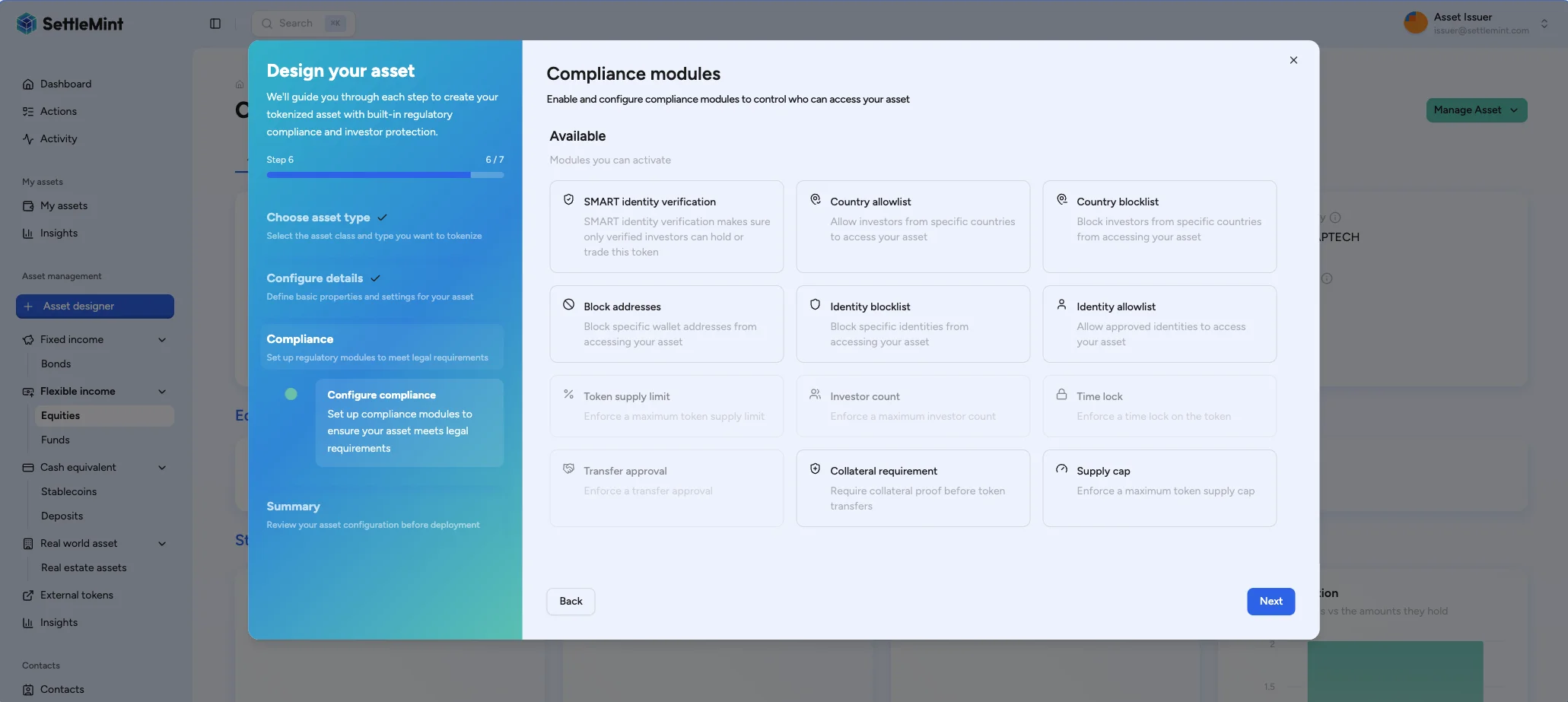
Enable compliance modules
Select which compliance rules to enforce on your asset. These modules are enforced automatically on-chain for every transfer.
| Module | Description |
|---|---|
| Identity verification | Requires both sender and recipient wallets to have a verified OnchainID with valid compliance verifications (e.g., KYC, accreditation). Wallets without verified identity cannot send or receive the asset. |
| Country allow list | Only wallets with an OnchainID issued in specified countries can hold the asset. Use for securities restricted to certain jurisdictions. |
| Country block list | Wallets with an OnchainID from blocked countries cannot hold the asset. Use for sanctions compliance or regulatory restrictions. |
| Address block list | Explicitly block specific wallet addresses from holding or transferring the asset, regardless of their identity status. |
| Investor count limit | Caps the maximum number of unique wallet addresses that can hold the asset. Useful for private placements with regulatory investor limits (e.g., Reg D 99 investor cap). |
| Time lock | Enforces a minimum holding period before the asset can be transferred. Investors must hold for the specified duration after receiving units. |
| Transfer approval | Requires an authorized approver to manually approve each transfer before it executes. Use for securities requiring transfer agent oversight. |
| Collateral requirement | Requires sufficient collateral backing before minting new units. Validates only minting operations, not transfers. |
If you select a compliance template, the asset must submit every control declared by that template. DALP rejects the deployment when the template controls are missing from the final configuration or when a country allow list has no countries selected, because an empty allow list would block every transfer.
For more details on compliance modules, see the compliance overview.
Set initial asset permissions
Confirm which wallets should receive asset-level roles when DALP deploys the token. The wizard keeps your connected wallet in the permission list with Admin and Governance roles by default, so the final review can continue with a manageable asset.
Use Add permission to grant another wallet one or more asset roles before deployment. Current asset-level roles include Admin, Custodian, Emergency, Funds Manager, Governance, Sale Admin, and Supply Management. Add only the roles each wallet needs for the first operating step after deployment, such as unpausing the asset or minting the first supply.
Review and deploy
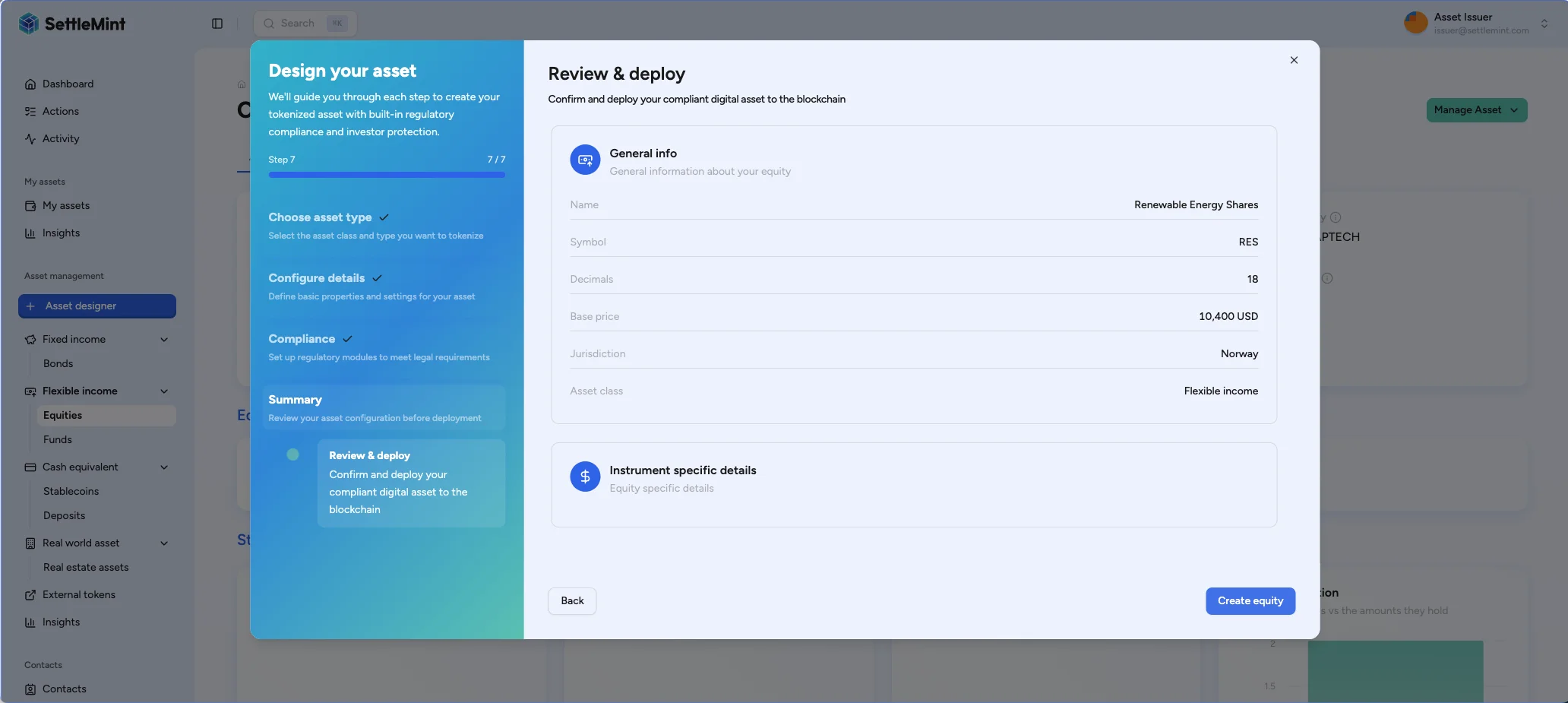
Review the selected template, asset details, compliance controls, and initial permissions on the summary page. When ready, click Deploy and authenticate with your PIN or OTP to submit the transaction.
After deployment
Once the transaction confirms:
- Your new asset appears under Asset management in the sidebar, listed under its asset class (e.g., Fixed income > Bonds)
- DALP grants the initial asset roles you reviewed in the permissions step
- Pricing and classification verifications are issued to the asset's identity
- The asset is paused by default - transfers and issuance are disabled until activated
Activating the asset
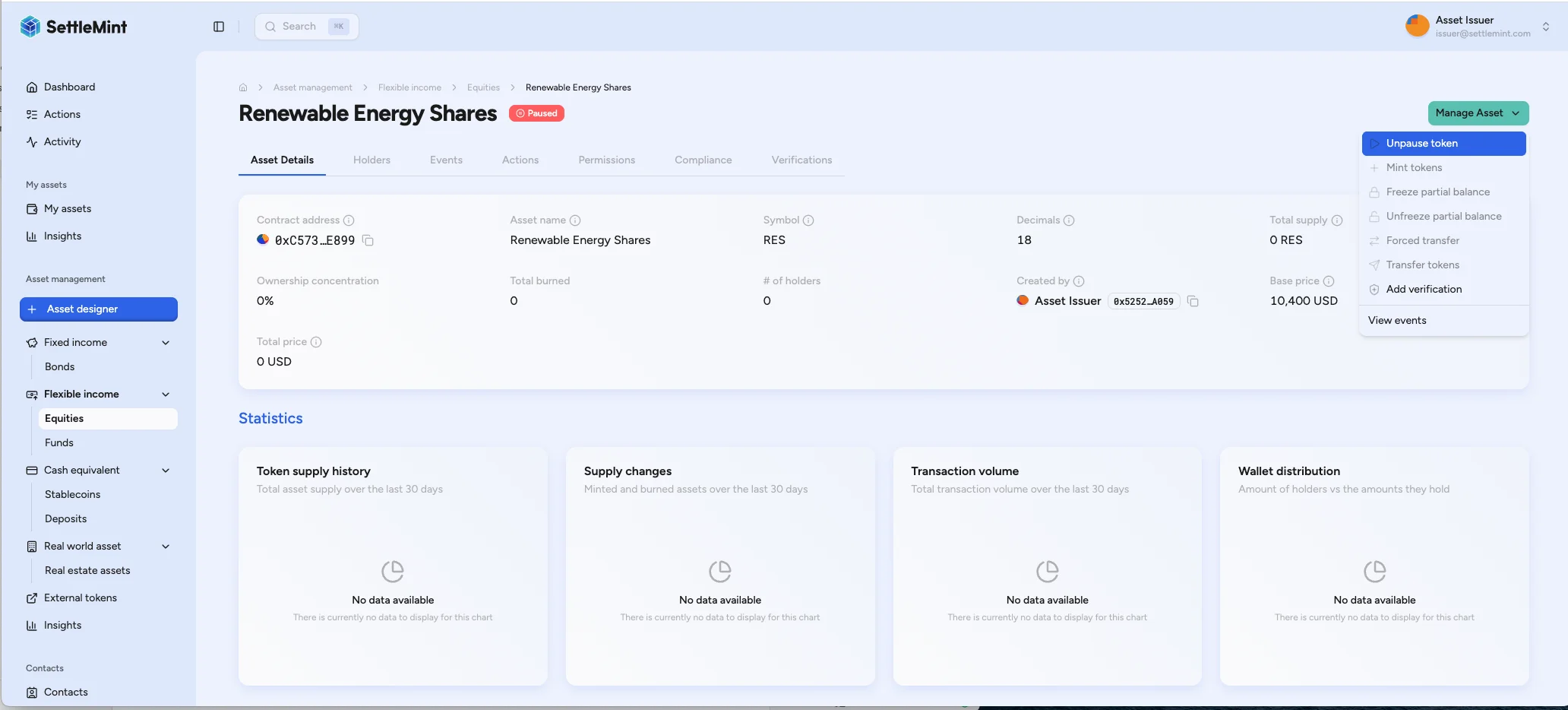
New assets are created in a paused state to allow for review and final approvals before going live. This gives compliance teams a review point before any units are issued.
To activate the asset:
- Navigate to the asset detail page under Asset management in the sidebar
- Click Manage Asset and select Unpause
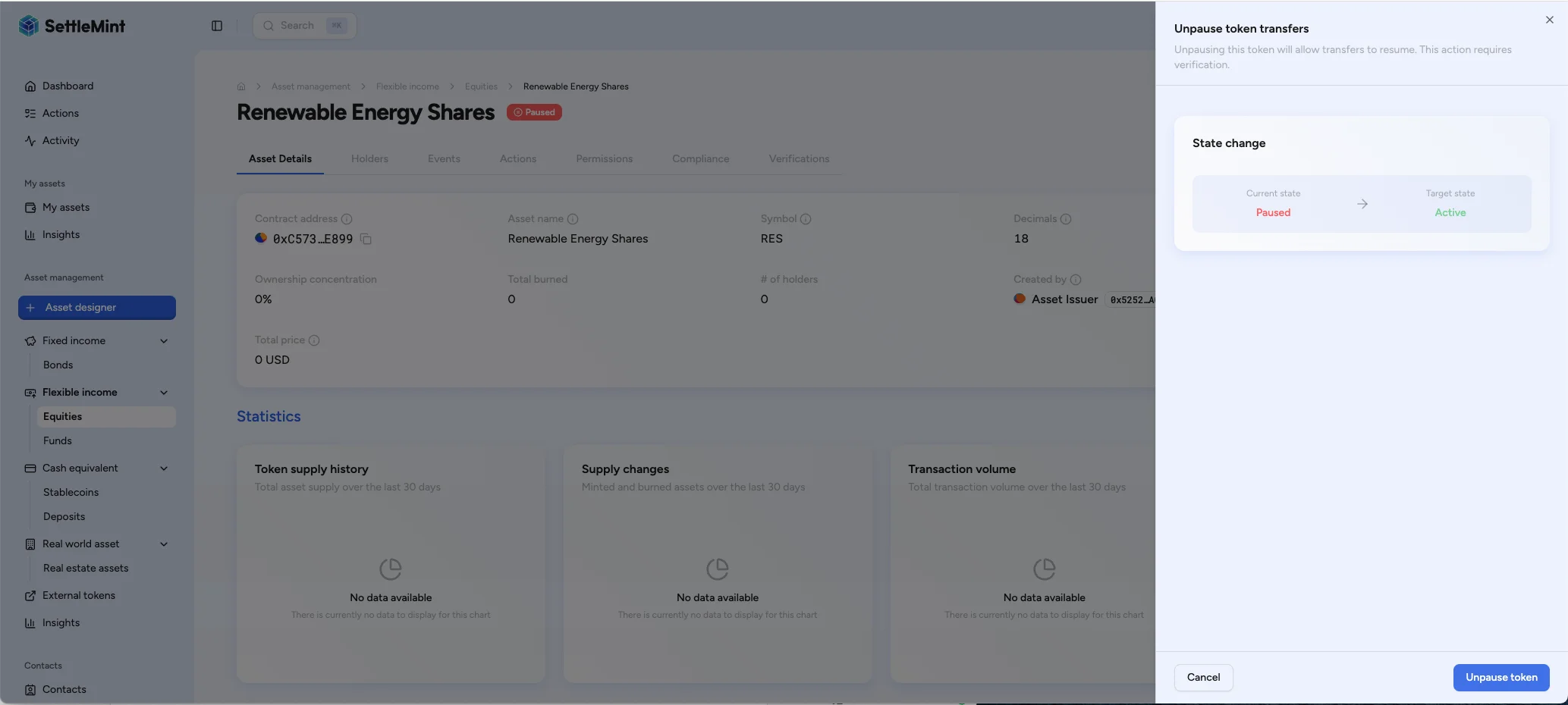
- Authenticate with your PIN or OTP to confirm
Required role
Only users with the EMERGENCY role for this asset can unpause it. Contact your administrator if you don't have the
required permissions.
Once unpaused, authorized users can begin issuing the asset to investor accounts.
Troubleshooting
| Issue | Solution |
|---|---|
| Create Asset button disabled | Verify you have the tokenManager role assigned |
| Instrument template not available | Use Select instrument template to choose a published template for the chosen asset class, or ask an administrator to publish one backed by a usable token factory. |
| Deployment fails | Ensure wallet has sufficient gas and wallet verification is configured |
| Missing template feature inputs | Confirm the selected published instrument template is linked to a usable token factory and includes the required feature configuration. |
| Missing compliance options | Use Enable compliance modules to confirm the needed compliance rules are selected and configured for the asset. If you selected a compliance template, every required control must appear in the final configuration. |
| Empty country allow list | Add at least one allowed country, remove the country allow-list control, or choose a different compliance template. An empty allow list blocks every transfer, so DALP rejects it before deployment. |
Collateral requirement
Configure the collateral compliance module so DALP checks the asset identity for a valid collateral claim before minting more supply.
Create and operate a bond
Create a bond in the DALP console, then prepare the yield, treasury, maturity, and redemption steps that keep the bond serviceable after issuance.