

Create a feed
Deploy an issuer-signed scalar feed or register a Chainlink-compatible feed for a global, asset, or identity subject.
Create a data feed in the DALP app when a workflow needs reusable market, asset, or identity data. A feed can be global for market-wide data, asset-scoped for one token, or identity-scoped for one identity.
DALP supports two creation paths:
- Issuer-signed feed - DALP deploys a scalar feed contract. Trusted issuers later publish signed EIP-712 updates to that feed.
- Chainlink-compatible feed - DALP registers an existing external feed address in the Feeds Directory. The external oracle operator still manages the source feed.
Prerequisites
Before you start, make sure you have:
- The Feeds manager role assigned in platform access control
- A scalar feed verification topic already created, see Create a topic
- For issuer-signed feeds, a trusted issuer configured for the topic, see Configure trusted issuers
- For Chainlink-compatible feeds, the external oracle contract address you want DALP to register
- For asset-scoped feeds, the target asset already deployed
Creation model
The scope, subject, and topic identify the data slot. The source type decides whether DALP deploys the feed contract or records an existing Chainlink-compatible address for that same slot.
Example configuration
Use a global issuer-signed feed for a reusable market price that trusted issuers will update inside DALP.
| Field | Example value | Why this value fits |
|---|---|---|
| Scope | Global | The price applies across the market rather than to one asset or identity |
| Subject address | Zero address | DALP fills this automatically for global feeds |
| Topic name | BTC/USD | The scalar topic identifies the value publishers submit |
| Source type | Issuer-signed | DALP deploys the feed and validates signed updates from trusted issuers |
| Decimals | 8 | Common precision for USD price feeds |
| Description | BTC/USD | Human-readable label stored with the deployed feed |
| History mode | Bounded | Keeps a fixed update history instead of only the latest value or all values forever |
| History size | 100 | Stores the latest 100 submitted values |
| Require positive | Enabled | Rejects zero or negative price submissions |
| Drift allowance | 300 seconds | Rejects updates whose observed time is more than five minutes from block time |
After registration, a trusted issuer can publish the first BTC/USD value for the same topic. If you already operate a Chainlink-compatible oracle for the price, choose Chainlink instead and enter that feed address; DALP registers the address but does not operate the external oracle.
Steps
Navigate to data feeds
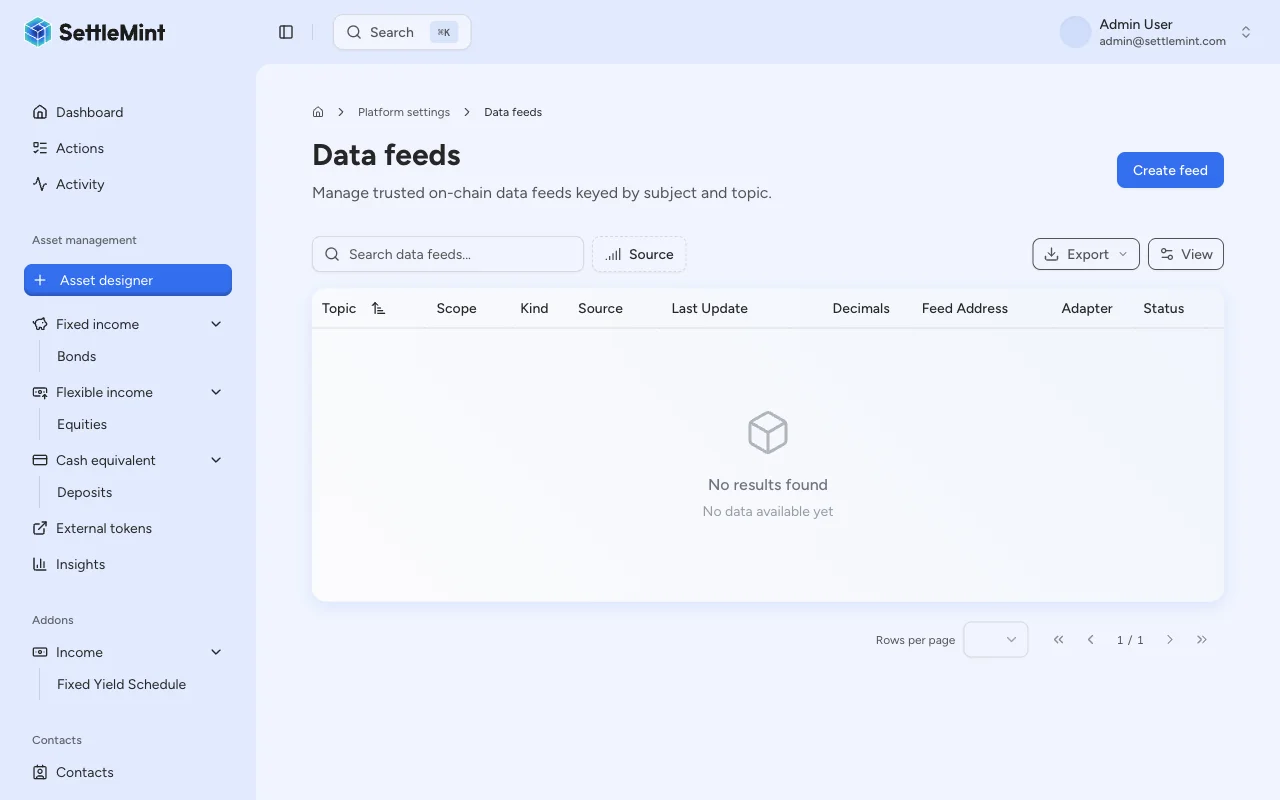
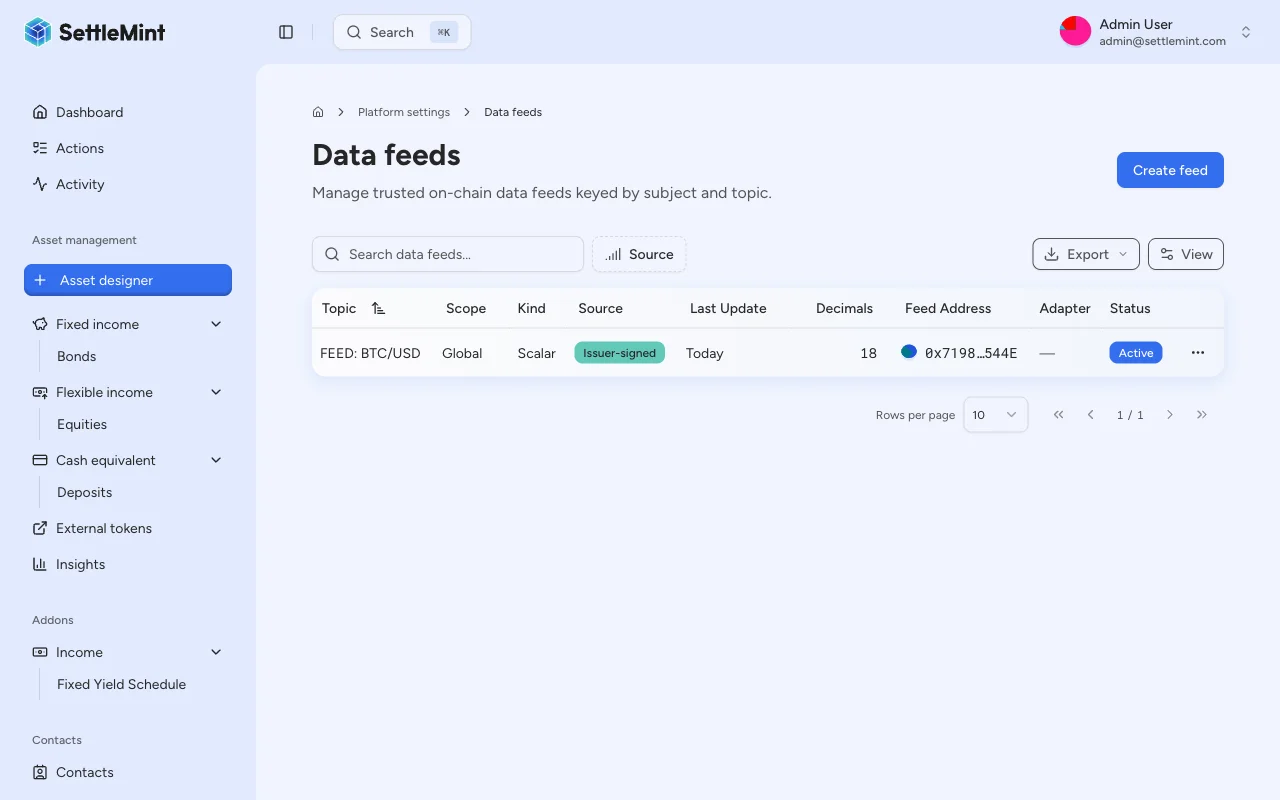
Go to Platform Settings > Data Feeds in the sidebar. The page lists registered feeds and their latest indexed values.
Select the feed scope
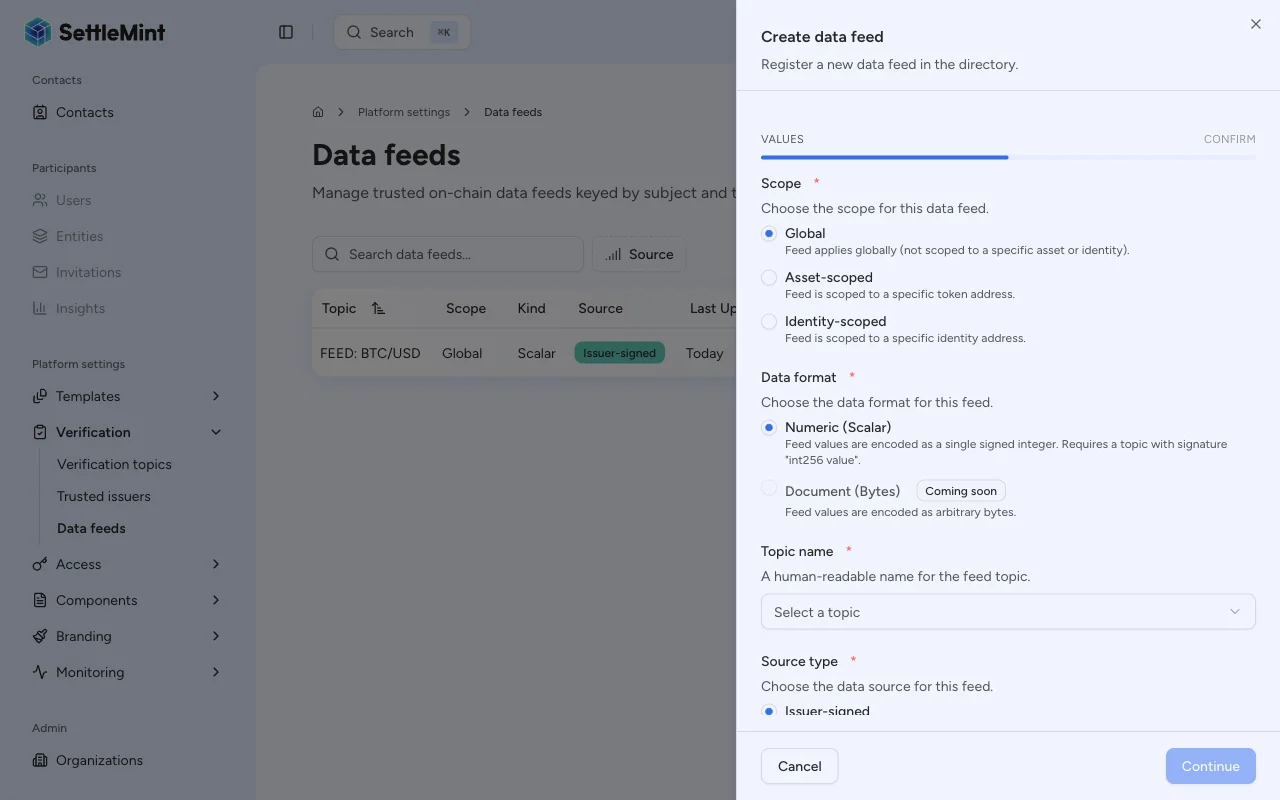
Choose the scope first. The scope determines the feed subject address.
| Scope | Use it for | Subject address |
|---|---|---|
| Global | Market-wide data such as BTC/USD, ETH/USD, or FX rates | DALP uses the zero address automatically |
| Asset-scoped | Data tied to one deployed token, such as NAV, interest rate, collateral ratio, or risk score | Select the asset from the subject dropdown |
| Identity-scoped | Data tied to one identity | Select the identity from the subject dropdown |
For asset or identity scope, the form shows a Subject address selector. Pick the exact asset or identity before continuing.
Select the topic and source type
Fill in the common feed fields:
- Data format - Scalar is the supported feed format.
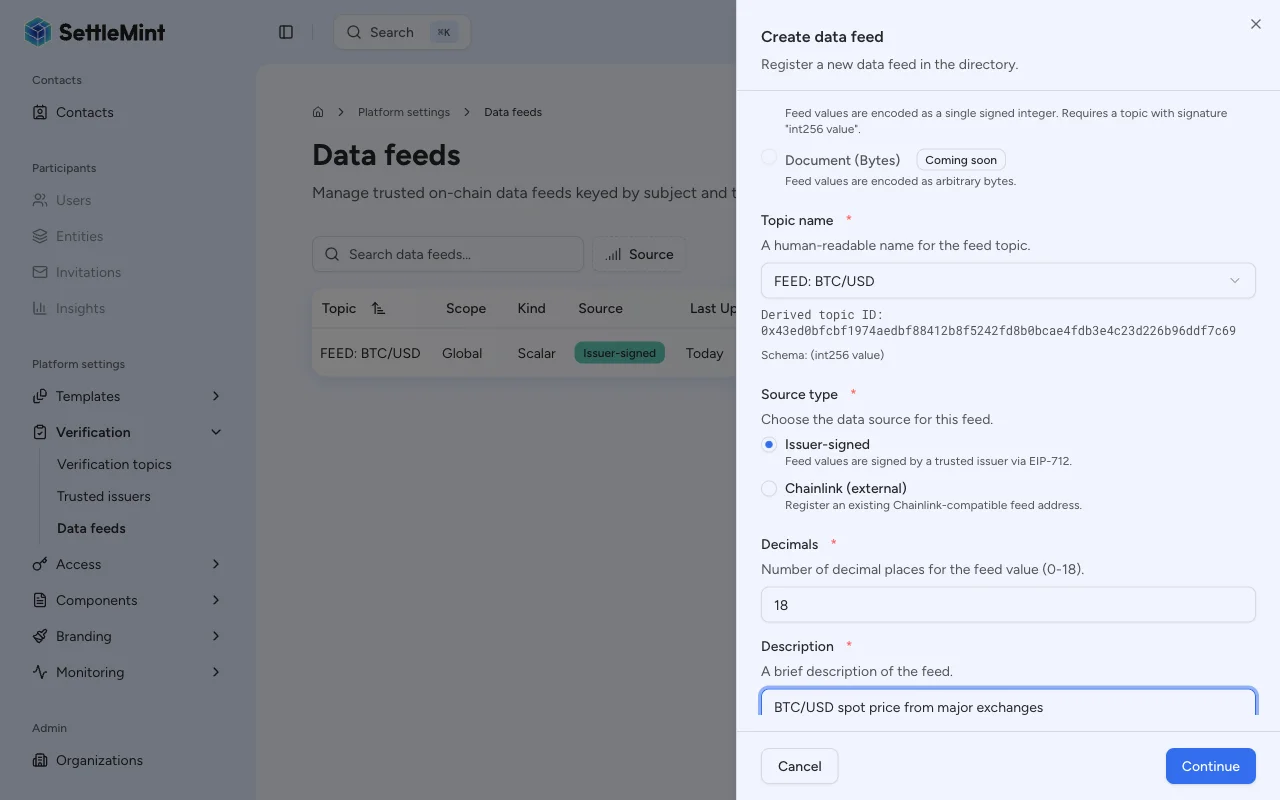
- Topic name - Select a scalar feed topic from the dropdown. The form shows the derived topic ID so you can confirm the topic being registered.
- Source type - Choose Issuer-signed to deploy a DALP-managed feed, or Chainlink to register an existing external feed address.
Issuer-signed availability
If the issuer-signed feed factory is not installed for the current system, the app only offers the Chainlink-compatible registration path. Finish the platform feed setup before creating issuer-signed feeds.
Configure the selected source
For an issuer-signed feed, configure the contract DALP will deploy:
| Field | What to enter |
|---|---|
| Decimals | Feed value precision from 0 to 18. USD price feeds often use 8; integer metrics can use 0. |
| Description | A plain-language label for what the feed measures, such as USDT / USD or BTC/USD spot price. |
| History mode | Latest only keeps the most recent value, Bounded keeps a fixed number of values, and Full keeps all values. |
| History size | Required only for Bounded history. Use at least 1. |
| Require positive | Rejects submitted values that are zero or negative. |
| Drift allowance | Maximum allowed difference, in seconds, between the submitted observedAt time and the block timestamp. Use 0 to disable drift checking. |
The form defaults issuer-signed feeds to 18 decimals, Latest only history, no positivity check, and 0 seconds of drift allowance. Change those values before creating the feed if your issuer updates need a different retention, precision, or validation model.
For a Chainlink-compatible feed, enter the external Feed address. DALP registers that address for the selected subject and topic with scalar feed kind. DALP does not deploy or operate that external oracle.
Review and confirm
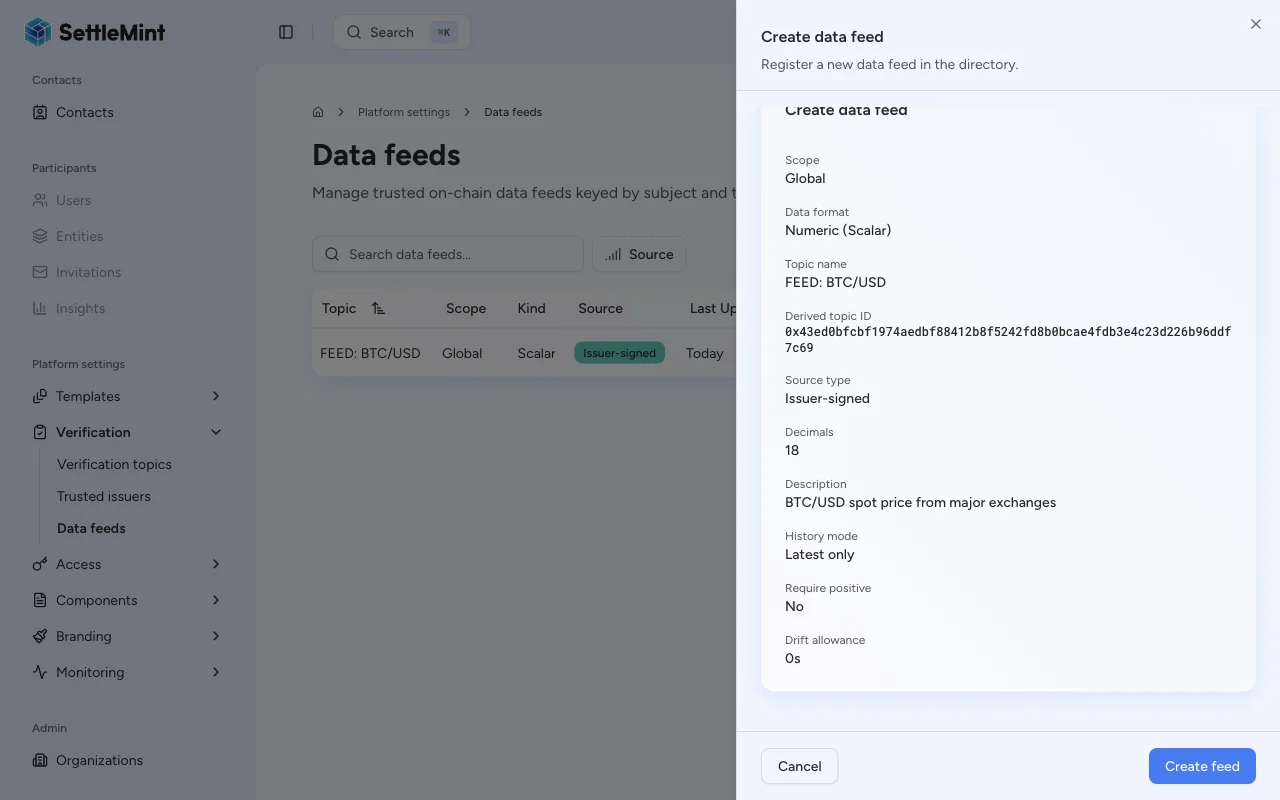
Click Continue to review the configuration summary. Check the scope, subject, topic, source type, and source-specific fields before submitting.
Click Register feed and enter your PIN to authenticate the transaction.
Verify the feed
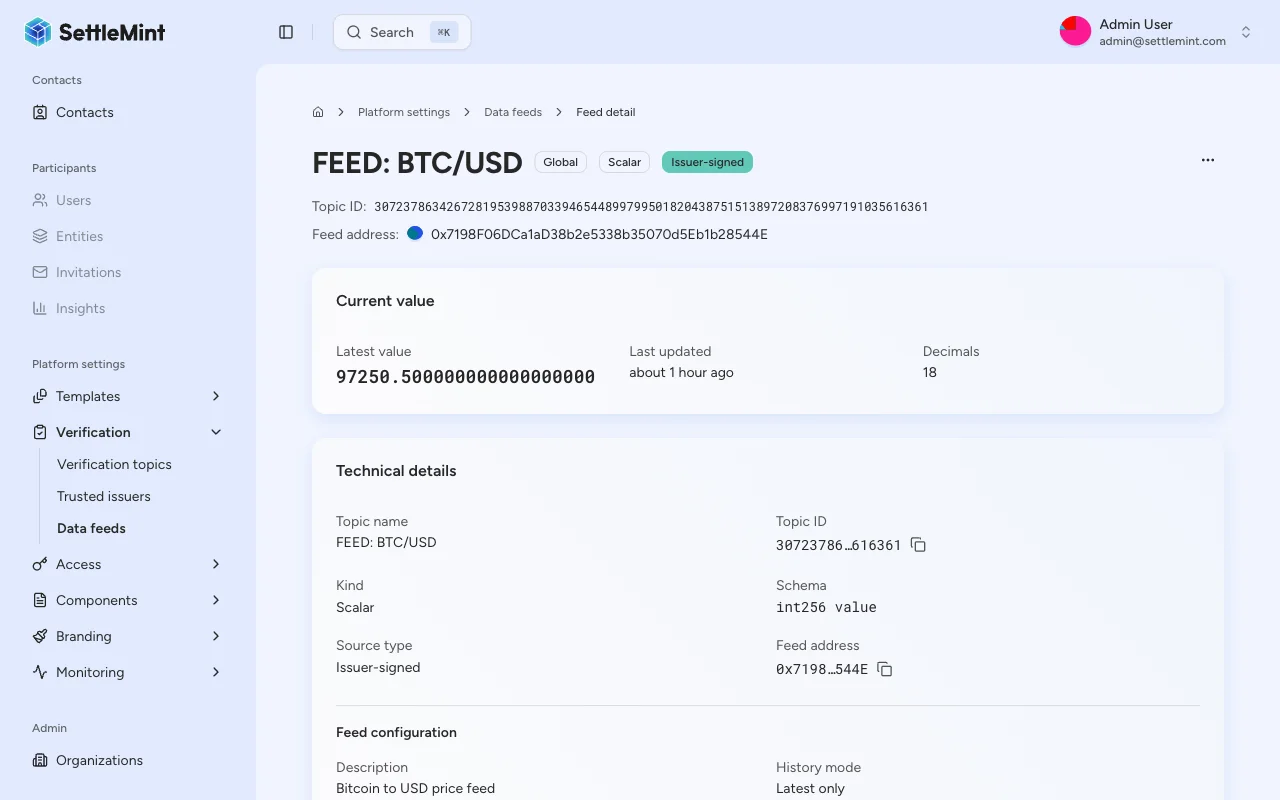
After the transaction confirms, the feed appears in the Data Feeds list. Open the feed row to review the registered subject, topic, source type, configuration, and latest value.
What happens after registration
| Source type | What DALP does | What you do next |
|---|---|---|
| Issuer-signed | Deploys and registers a scalar feed contract | Publish the first value through a trusted issuer |
| Chainlink-compatible | Registers the external feed address in the Feeds Directory for the selected subject and topic | Confirm the external oracle keeps updating and that DALP indexes the feed |
Issuer-signed properties are set when the feed is deployed. If you need different decimals, history mode, positivity checks, or drift controls, create a new feed with the desired configuration.
Field summary
| Field | Required | Applies to | Notes |
|---|---|---|---|
| Scope | Yes | All feeds | Determines the subject address |
| Subject address | Asset and identity scopes only | All feeds | Auto-filled for global scope |
| Data format | Yes | All feeds | Scalar feed values are supported |
| Topic name | Yes | All feeds | Must be a scalar feed topic |
| Source type | Yes | All feeds | Choose between issuer-signed deployment and Chainlink-compatible registration |
| Feed address | Yes | Chainlink-compatible feeds | Existing external oracle contract address |
| Decimals | Yes | Issuer-signed feeds | Range: 0 to 18 |
| Description | Yes | Issuer-signed feeds | Human-readable description stored with the feed |
| History mode | Yes | Issuer-signed feeds | Controls value retention |
| History size | Bounded mode only | Issuer-signed feeds | Minimum: 1 |
| Require positive | No | Issuer-signed feeds | Rejects non-positive values when enabled |
| Drift allowance | No | Issuer-signed feeds | Time window in seconds; 0 disables drift checking |
Troubleshooting
| Issue | What to check |
|---|---|
| Create feed button not visible | Confirm your wallet has the Feeds manager role in platform access control. |
| Issuer-signed option not available | Confirm the issuer-signed feed factory is installed for the system. |
| No topics in the dropdown | Create a scalar feed topic first, see Create a topic. |
| Continue button disabled | Select a topic first. For asset or identity scope, also choose a subject address. For issuer-signed feeds, fill in the description and bounded history size when applicable. For Chainlink-compatible feeds, fill in the external feed address. |
| Asset not in subject dropdown | Confirm the asset is deployed and visible under Asset management. |
| Transaction fails | Check your wallet gas balance, PIN or OTP setup, subject address, and feed factory availability. |
Next steps
- For issuer-signed feeds, publish a feed update to submit the first value.
- For Chainlink-compatible feeds, open the feed detail page after indexing and confirm the external oracle value is visible.
- To understand how feeds fit the wider data model, read the Data feeds overview.