

Provide KYC data
Complete your KYC profile with personal information and supporting documents to enable identity verification and asset transactions.
This guide explains how to complete your KYC (Know Your Customer) profile with personal information and supporting documents. Completing your KYC profile is required before an Identity Manager can verify your identity and enable you to receive assets.
Prerequisites
- Completed platform onboarding with wallet and on-chain identity
- Access to identity documents for upload
About KYC profiles
Your KYC profile stores the personal information needed for identity verification. The platform uses a versioned workflow:
| Status | Description | What you can do |
|---|---|---|
| Draft | Profile in progress, not yet submitted | Edit fields, upload documents, submit |
| Submitted | Awaiting review by Identity Manager | View only |
| Under review | Identity Manager is reviewing your data | View only |
| Approved | Identity verified, ready for assets | Create new version if data changes |
| Rejected | Changes required before approval | View feedback, create corrected draft |
Completing your KYC profile
Access your profile
Navigate to your account settings by clicking your avatar in the top right corner and selecting Profile. Find the KYC Information card. If you skipped the personal information step during onboarding, you can still start your KYC profile here by saving your first draft.
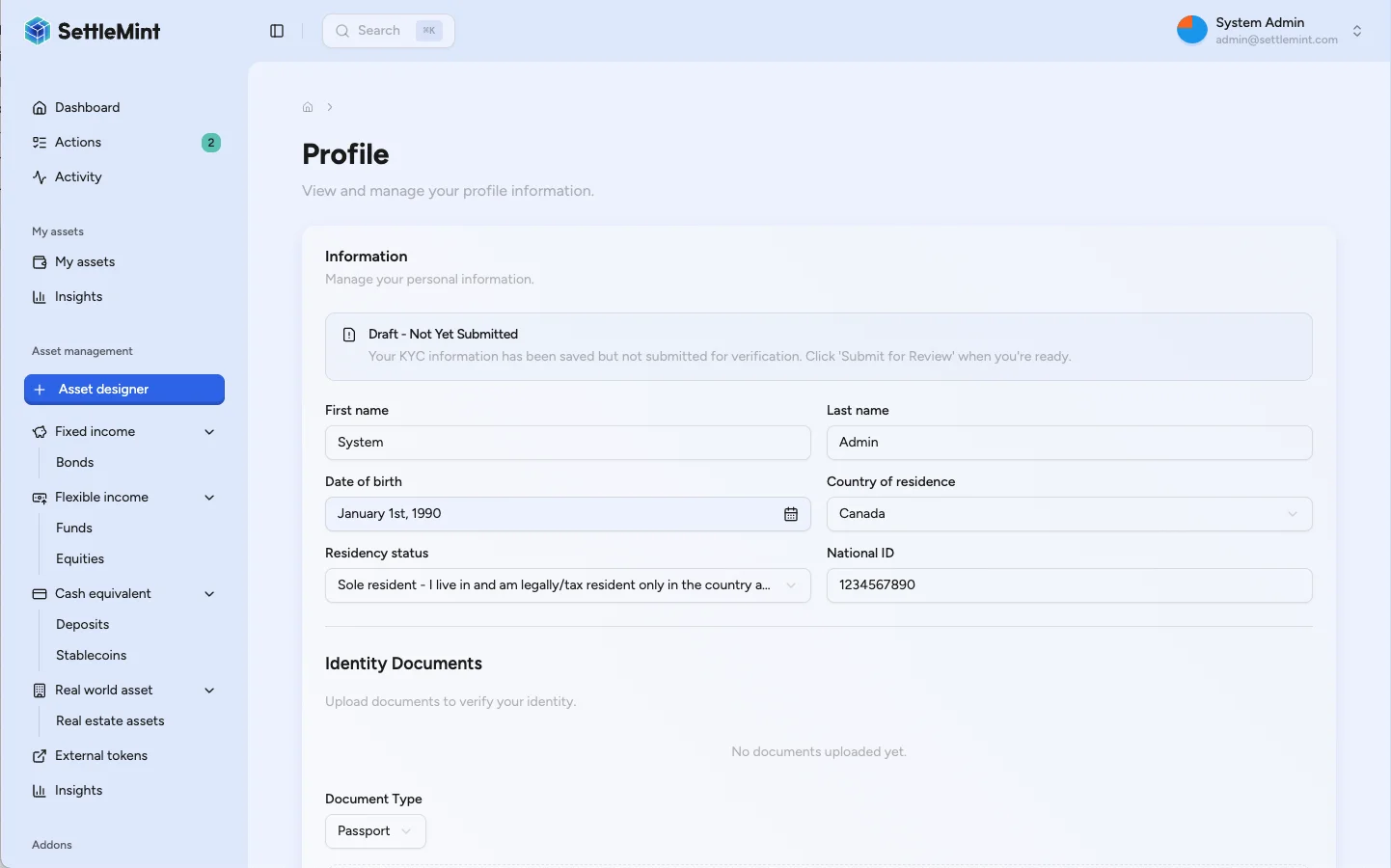
Fill in personal information
Complete the following fields:
- First name and Last name: Your legal name as it appears on identity documents
- Date of birth: Your birth date for age verification
- Country: Your country of citizenship or legal residence
- Residency status: Select your tax residency classification (Resident, Non-resident, Dual resident, or Unknown)
- National ID: Your government-issued identification number (passport, national ID, or equivalent)
Save your draft
Click Save draft to store your information. You can return and edit your profile at any time while it remains in draft status.
Upload supporting documents
After saving, the document upload section becomes available. Upload documents that verify your identity:
- Government-issued ID (passport, national ID card, driver's license)
- Proof of address (utility bill, bank statement)
- Additional documents as required by your organization
Each document shows its type, filename, and upload date. You can delete documents and upload replacements while in draft status.
Submit for review
When your profile is complete, click Submit for review. A confirmation dialog explains that you cannot edit your submission while under review.
Click Submit to confirm. Your status changes to Submitted and an Identity Manager will review your information.
After submission
Once submitted, you cannot edit your KYC profile until the review is complete. The status banner at the top of your KYC card shows the current state:
- Submitted: Your data is queued for review
- Under review: An Identity Manager is actively reviewing your information
- Approved: Your identity has been verified
- Rejected: Changes are required (see feedback below)
Handling rejections
If your submission is rejected, the status banner displays the reason provided by the Identity Manager. Common reasons include:
- Document quality issues (blurry, incomplete, or expired)
- Mismatched information between fields and documents
- Missing required documents
- Incomplete information
Making corrections
Review the feedback
Read the rejection reason or update request carefully. The feedback box shows exactly what needs to be corrected.
Create a new draft
When your profile is rejected or an update is requested, edit any field to create a new draft version. The platform preserves your version history.
Make corrections
Update the fields or documents as specified in the feedback. Address all issues mentioned before resubmitting.
Submit again
Click Submit for review to send your corrected profile for another review cycle.
Viewing version history
Your KYC profile maintains a complete version history. Click View history to see all previous submissions, including:
- Version number and submission date
- Status of each version
- Reviewer notes (for approved versions)
- Rejection reasons (for rejected versions)
This history helps you track changes and understand the review timeline.
Best practices
Document quality
- Ensure documents are clear, legible, and complete
- Upload color scans or photos when possible
- Verify all pages of multi-page documents are included
- Check that documents are not expired
Information accuracy
- Use your legal name exactly as it appears on documents
- Double-check all dates and numbers before submitting
- Ensure country and residency status match your documentation
Timely response
- Respond promptly to rejection feedback
- Contact your Identity Manager if requirements are unclear
- Keep your profile updated if personal information changes
Troubleshooting
| Issue | Solution |
|---|---|
| Cannot edit submitted profile | Wait for review completion. Profiles under review cannot be edited. |
| Document upload fails | Check file size and format. Supported formats include PDF, PNG, and JPEG. |
| Cannot submit profile | Ensure all required fields are completed and you have at least one document uploaded. |
| Repeated rejections | Contact your Identity Manager for clarification on requirements. |
| Cannot see KYC card | Verify you completed onboarding with an on-chain identity. Contact your administrator if the issue persists. |
Related guides
- User Onboarding - Complete platform onboarding first
- Register User - Learn about user registration in the identity registry
- Verify KYC - Understand how on-chain verifications are issued after KYC approval
- Manage KYC Data - Learn about the KYC submission review process
Recover a user's identity
Recover a user who lost wallet access, review the console preview, confirm recovery, and re-issue claims on the replacement identity.
Register user
Register users in the identity registry by linking a wallet, on-chain identity, and jurisdiction before token eligibility checks run.